自动化天塌了?AI 替你画 Simulink!Agent——MCP 配置踩坑指南(附真实环境实测)
本文整理自一次真实的 Windows 环境配置过程,面向已安装 MATLAB / Simulink 与 Python,希望在 Cursor或者其他Agent 里通过 Model Context Protocol (MCP) 让 AI 直接操作 Simulink 模型的读者。
前言
本文整理自一次真实的 Windows 环境配置过程,面向已安装 MATLAB / Simulink 与 Python,希望在 Cursor或者其他Agent 里通过 Model Context Protocol (MCP) 让 AI 直接操作 Simulink 模型的读者。
上游开源项目:sohumsuthar/simulink-mcp(许可证:PolyForm Noncommercial 1.0.0,商业用途请自行评估)。
一、你将得到什么
配置完成后,Cursor 中的 AI 可以通过 MCP 调用约 14 个结构化工具,完成例如:
- 加载 / 关闭 / 保存
.slx模型 - 列举模块、读写参数、添加与删除模块、连线
- 读取与设置求解器与模型配置
- 运行仿真并返回图像或数据
MATLAB 采用懒启动:MCP 握手很快,第一次真正调用工具时才会启动 MATLAB 引擎,冷启动常需 约 15~20 秒,属正常现象。
在配置好这个mcp之后,你不需要在Simulink里面频繁拖拽、设置,只需要用自然语言和ai说你要建一个什么样的模型什么样的回路出来,ai会用最快的速度帮你直接画好。
二、环境与版本:最容易踩坑的一条链
整条链路要同时满足三件事:
- MATLAB Engine for Python 支持你选的 Python 小版本(由 MATLAB 发行版决定)。
- 官方 Python 包
mcp(mcp[cli]>=1.2.0) 要求 Python ≥ 3.10。 - simulink-mcp 依赖上述
mcp,因此 实际跑 MCP 的解释器必须是 3.10+,且与装 Engine 的为同一个。
典型冲突(真实案例)
- 旧版 MATLAB(例如 R2022a)自带的 Engine
setup.py仅声明支持 Python 2.7 / 3.7 / 3.8 / 3.9,在 Python 3.10 上执行pip install .会直接报版本不支持。 - 若坚持用 Python 3.9 装 Engine,则
mcp>=1.2.0无法安装(PyPI 上该包要求 Python ≥ 3.10)。
结论: 要使用当前主线 simulink-mcp,一般需要 较新的 MATLAB(官方 README 多针对 R2024a/R2024b 一类环境测试)+ Python 3.10 或 3.11(具体以 MathWorks 对「MATLAB Engine for Python」的文档为准,并避免使用尚未被 Engine 支持的过新版本,如部分环境下的 Python 3.13)。
三、确认 MATLAB 根目录
已能打开 MATLAB 时,在 命令行执行:
matlabroot
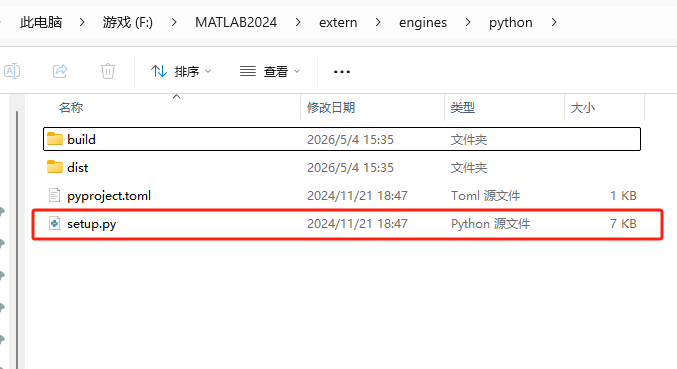
记下输出路径(例如 F:\MATLAB2024)。Engine 源码目录为:
<matlabroot>\extern\engines\python
该目录下应有 setup.py。在资源管理器中打开该路径,便于后续在 PowerShell 里 cd 过去。
四、安装 MATLAB Engine for Python
4.1 选定「唯一」的 Python 解释器
后面 Cursor MCP 的 command、pip install、import matlab.engine 自检,必须指向同一个 python.exe(建议始终使用绝对路径,避免混用 PATH 里多个 python)。
4.2 推荐:在 Engine 目录内执行 setup.py install
在 PowerShell 中(注意:调用带路径的可执行文件时,前面要加 &):
cd "<matlabroot>\extern\engines\python"
& "C:\Path\To\Python310\python.exe" setup.py install
为何不用简单的 pip install .?
pip 有时会把源码复制到临时目录再构建;在部分环境下会触发 「安装损坏」 等误报。在 extern\engines\python 源码目录下直接 setup.py install,往往更稳定。
4.3 验证 Engine
& "C:\Path\To\Python310\python.exe" -c "import matlab.engine; print('OK')"
应输出 OK。
五、安装 simulink-mcp
5.1 PyPI 包名说明
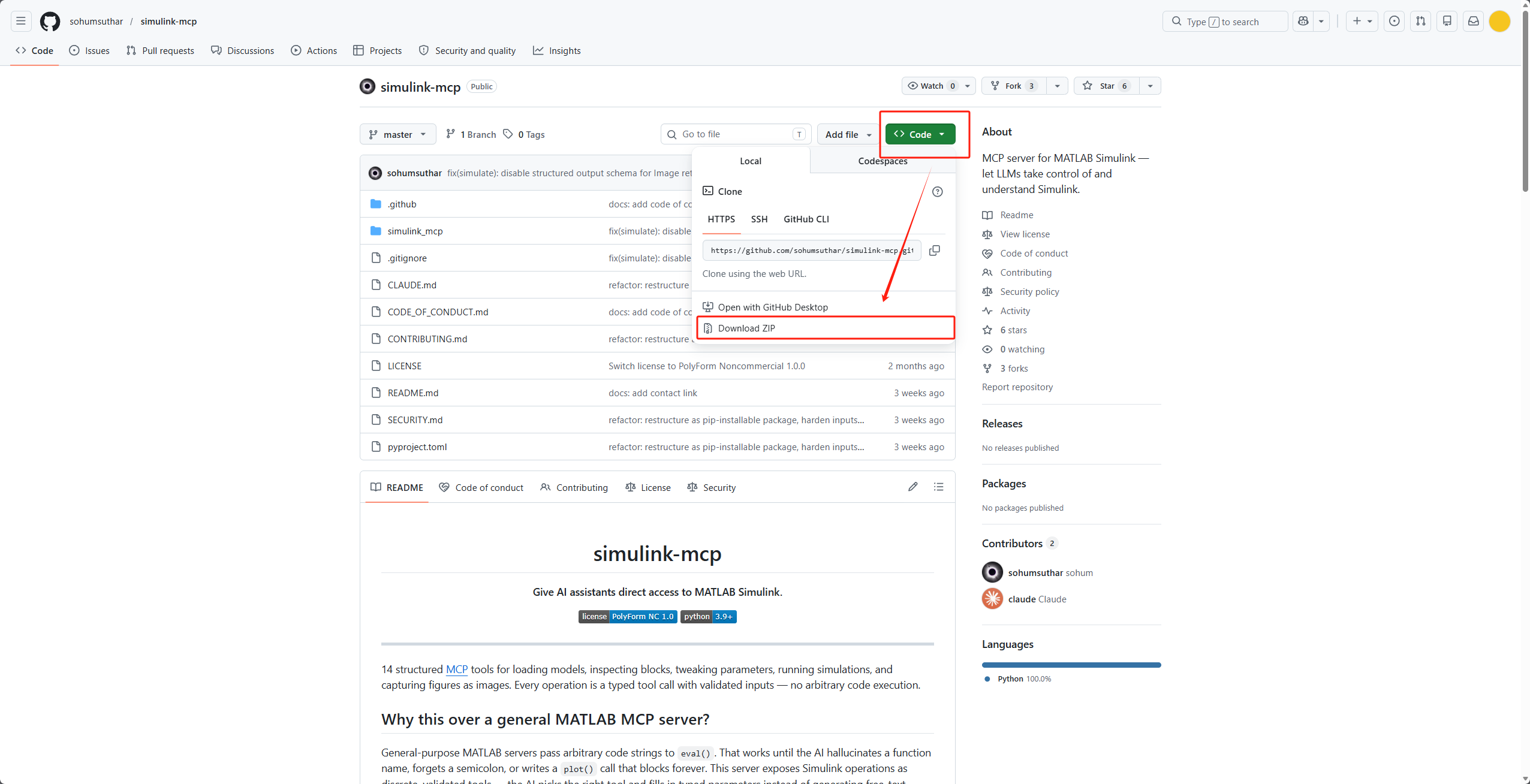
文档或旧笔记里可能出现 pip install simulink-mcp,但 PyPI 上未必存在同名包(或与你期望的仓库不一致)。可靠方式是从 GitHub 克隆后本地安装:
也可以直接到github上面整个压缩包下载下来:https://github.com/sohumsuthar/simulink-mcp
cd C:\Path\To\simulink-mcp
5.2 PowerShell 调用 pip 的语法
& "C:\Path\To\Python310\python.exe" -m pip install .
5.3 依赖构建与 mcp:建议分步安装
先升级构建链并安装 mcp[cli](需能访问 PyPI;若在国内,可换镜像,但镜像未同步时会出现「找不到包」):
Remove-Item Env:HTTP_PROXY,Env:HTTPS_PROXY,Env:ALL_PROXY,Env:http_proxy,Env:https_proxy,Env:all_proxy -ErrorAction SilentlyContinue

cd "C:\Path\To\simulink-mcp"
& "C:\Path\To\Python310\python.exe" -m pip install --upgrade pip setuptools wheel hatchling "mcp[cli]>=1.2.0" --index-url https://pypi.org/simple --trusted-host pypi.org --trusted-host files.pythonhosted.org
再安装本项目(--no-build-isolation 可减少子进程重复拉取 hatchling 的失败概率):
& "C:\Path\To\Python310\python.exe" -m pip install . --no-build-isolation --index-url https://pypi.org/simple --trusted-host pypi.org --trusted-host files.pythonhosted.org
5.4 网络与代理问题(真实踩坑)
若出现 ProxyError('Cannot connect to proxy.', FileNotFoundError(...)):
- 可能与 VPN / 系统代理 / 环境变量
HTTP_PROXY/HTTPS_PROXY有关;关闭 VPN 后在新开 PowerShell 中重试。 - 清除当前会话代理变量(见上节
Remove-Item Env:...)。 - 检查
netsh winhttp show proxy,必要时netsh winhttp reset proxy。 - 检查
pip config list是否配置了无效proxy。
若出现 SSLError / 清华镜像拉不到 hatchling:可临时改用 官方 PyPI 并配合 --trusted-host(见上节命令)。
5.5 与「全家桶」装在同一 Python 里的提示
若该 Python 里还装有 TensorFlow、Streamlit 等,pip 可能提示 依赖版本冲突。对 simulink-mcp 来说,多数情况下仍能运行;若其它项目异常,建议日后为 MCP 单独建 venv。
六、在 Cursor 中配置 MCP
6.1 工作目录环境变量
| 变量名 | 含义 |
|---|---|
SIMULINK_MCP_WORKDIR | MATLAB 引擎启动后 cd 的工作目录;影响相对路径加载与保存位置。 |
建议设为专门存放 .slx 的文件夹,例如 F:/SimulinkModels(JSON 中可用正斜杠或转义反斜杠)。
6.2 用户级 mcp.json 示例
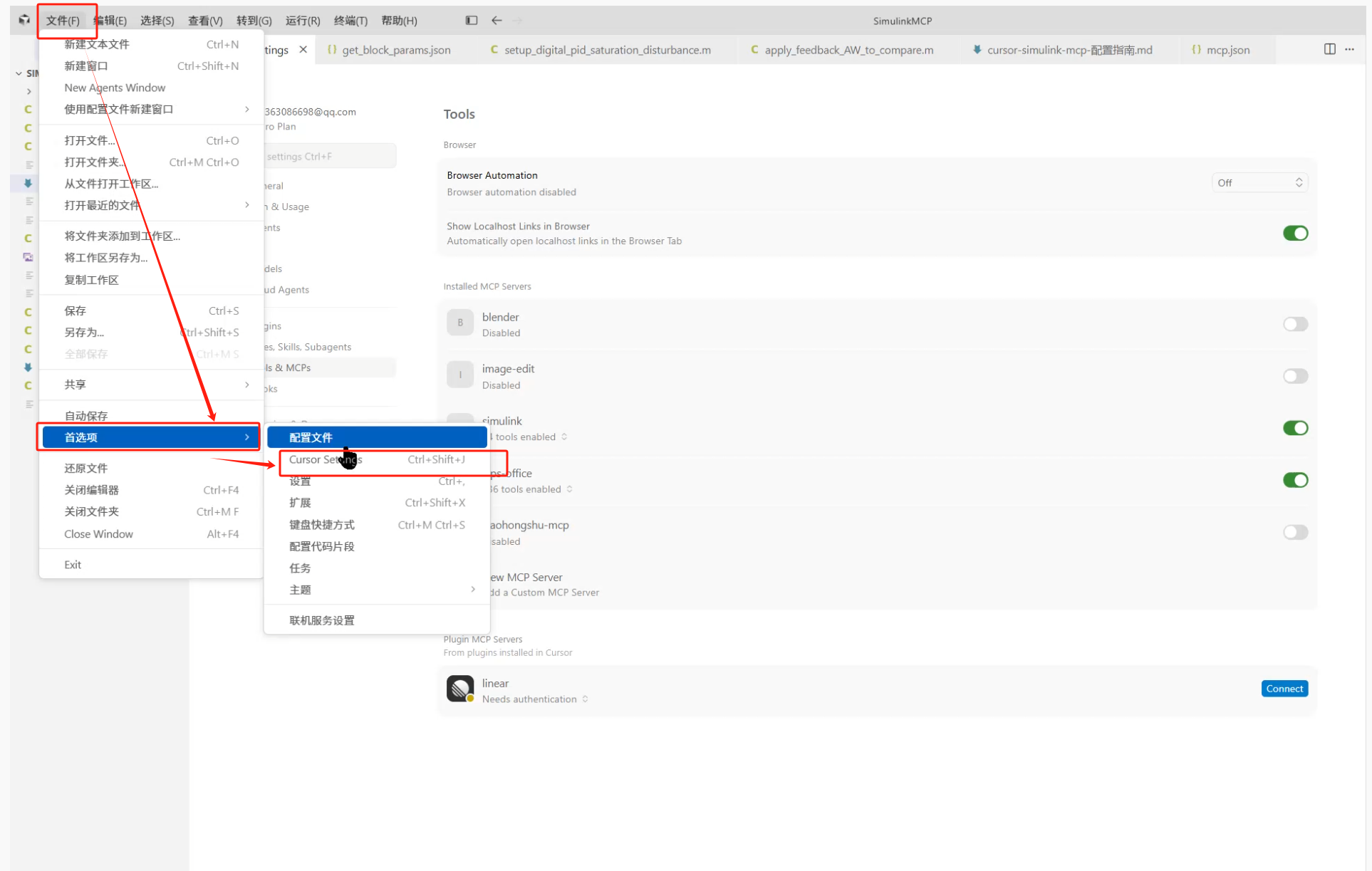
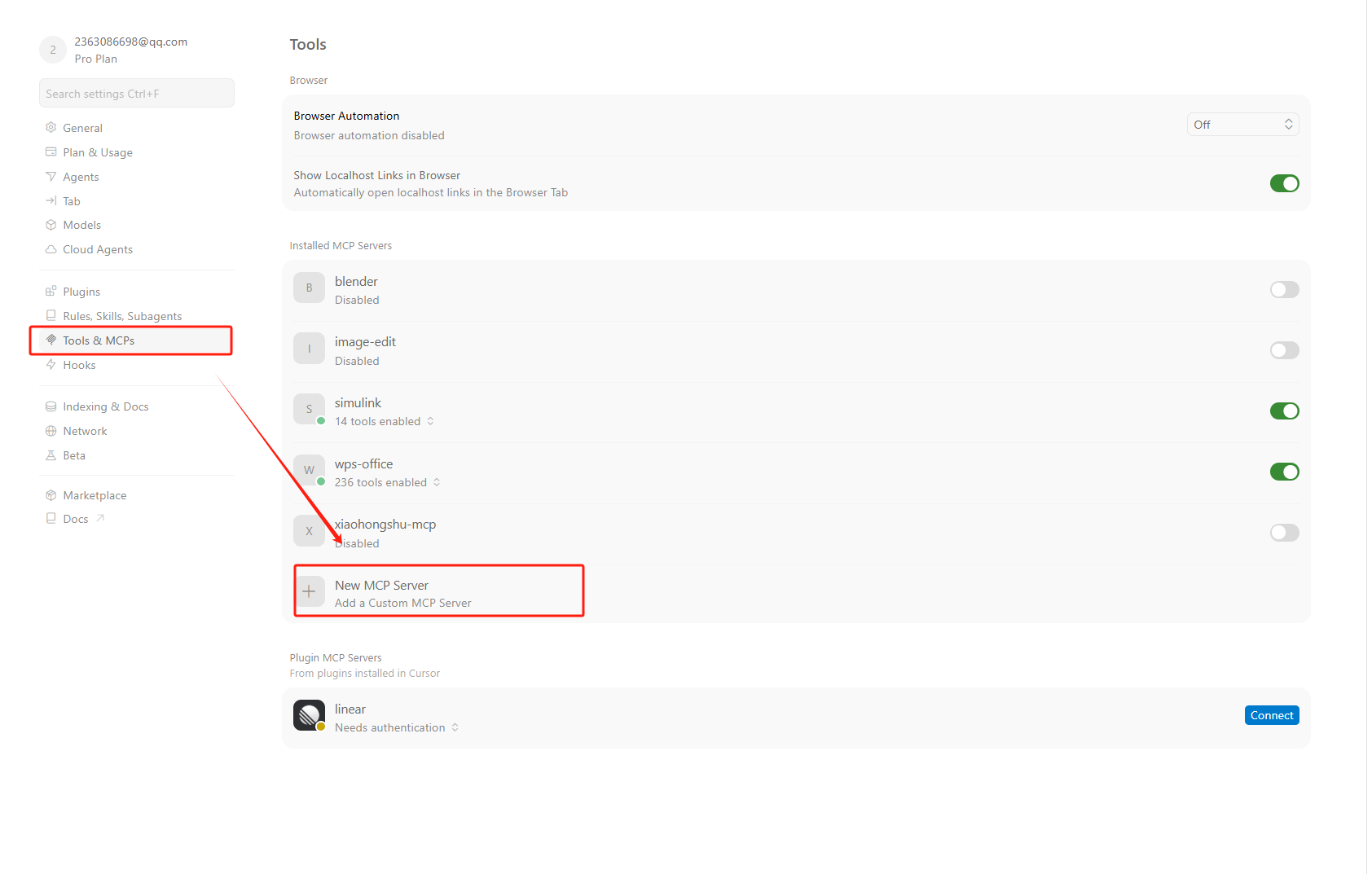
路径一般为:%USERPROFILE%\.cursor\mcp.json。
{
  "mcpServers": {
    "simulink": {
      "command": "C:/Users/你的用户名/AppData/Local/Programs/Python/Python310/python.exe",
      "args": ["-m", "simulink_mcp"],
      "env": {
        "SIMULINK_MCP_WORKDIR": "F:/SimulinkModels"
      }
    }
  }
}
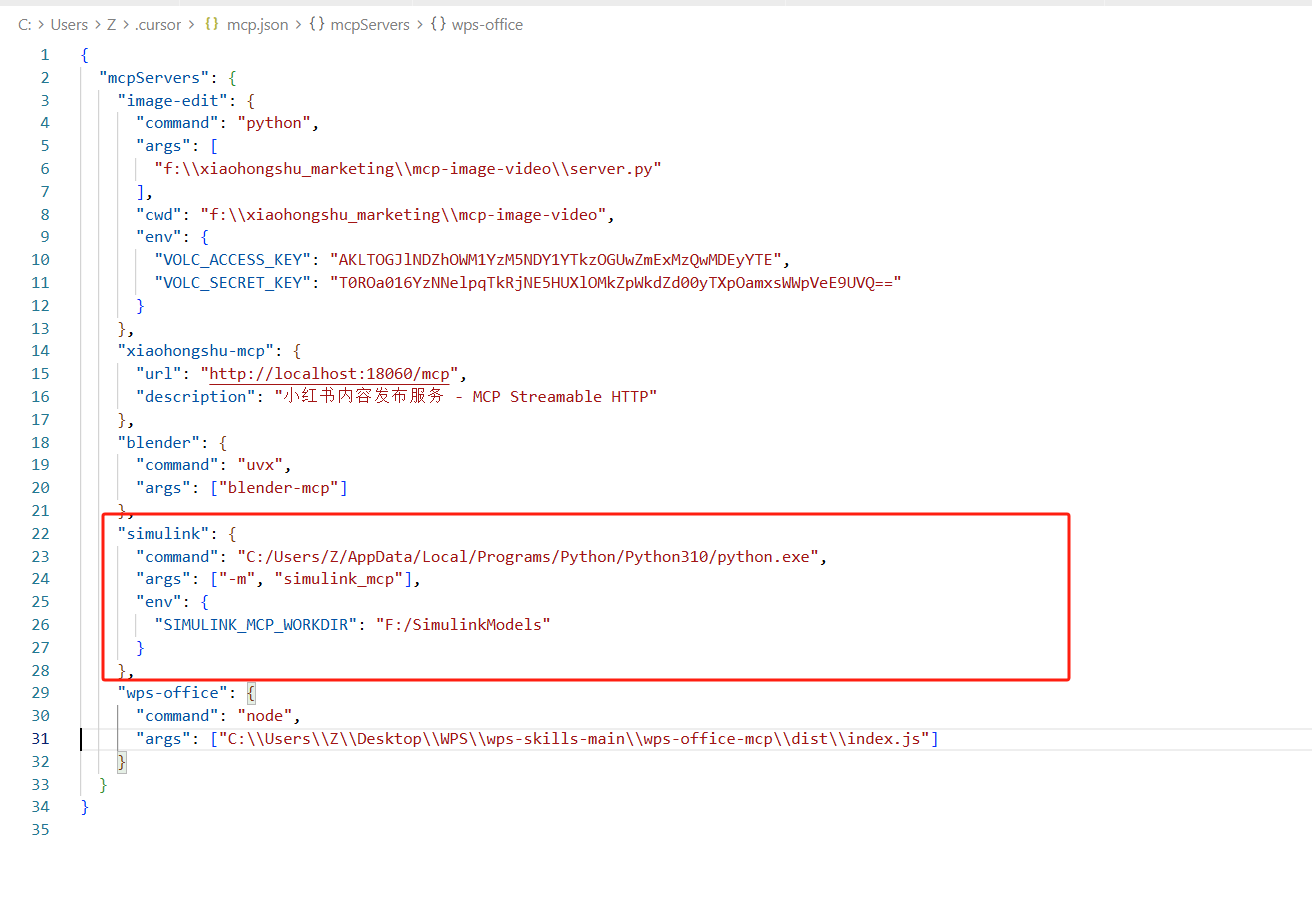
要点:
command务必使用 与安装 Engine、simulink-mcp时相同的python.exe绝对路径。- 每个 MCP 服务器独立进程;只改
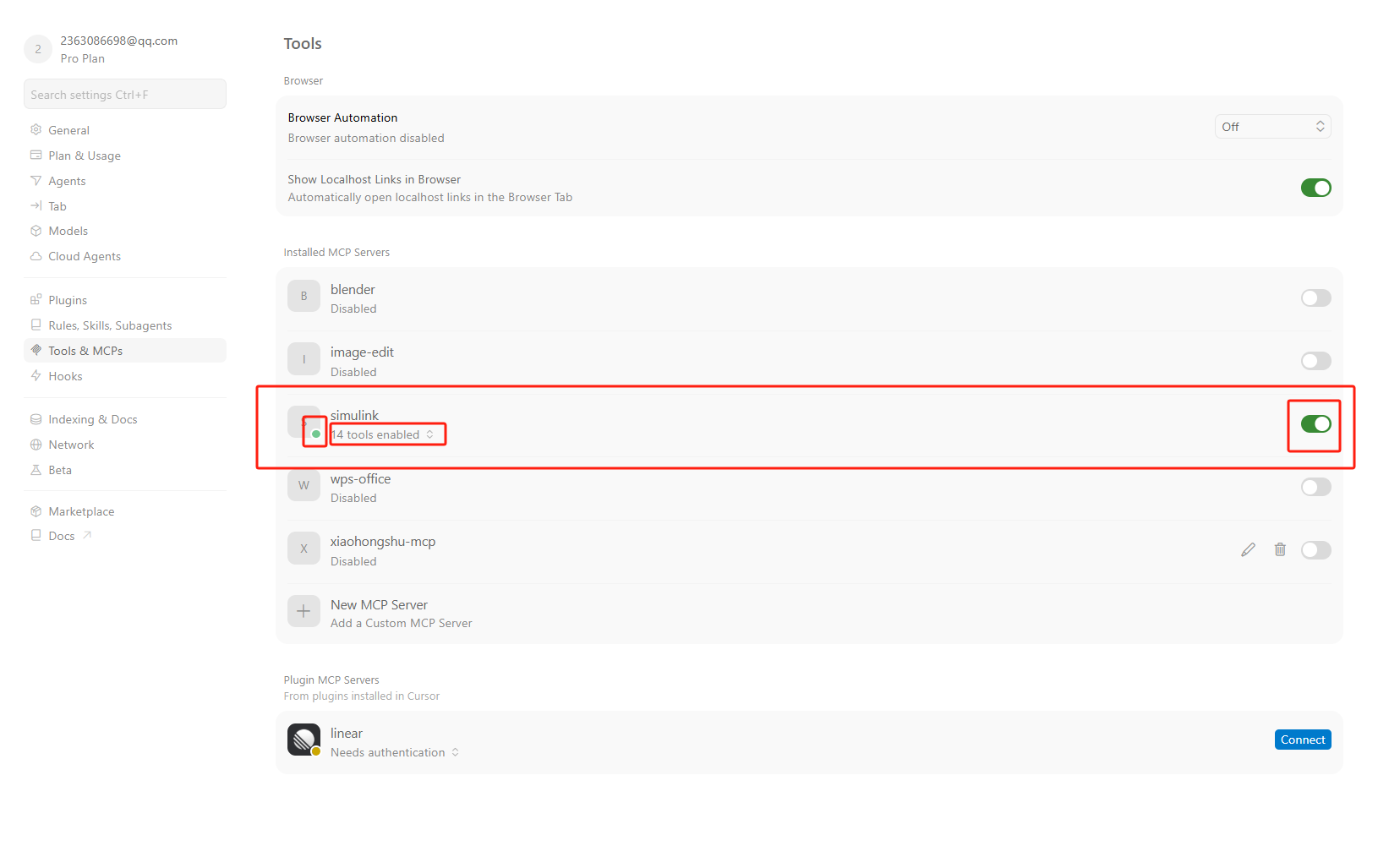
simulink的command不会自动改变其它 MCP(例如仍写python跑脚本的服务)。 - 修改后 完全重启 Cursor 或重载窗口,再在 Settings → MCP 中确认 simulink 为绿色、工具数量与文档一致(例如 14 tools)。
七、自检清单
| 检查项 | 操作 |
|---|---|
| Python 小版本 | python -V,且与 Engine / mcp 要求一致 |
| Engine | python -c "import matlab.engine; print('OK')" |
| simulink-mcp | pip show simulink-mcp |
| MCP 解释器一致 | mcp.json 中 command 与上面为同一 python.exe |
| 工作目录 | 已设置 SIMULINK_MCP_WORKDIR,且文件夹存在 |
| 许可 | 非商业用途符合 PolyForm NC |
八、首次使用与排错提示
- 第一次工具调用再启动 MATLAB,请耐心等待。
- 若 MCP 报错:看 Cursor MCP 日志;任务管理器确认是否有 MATLAB 进程。
- 上游 README 提到:无效 Simulink 操作可能导致会话崩溃,可 重启 MCP。
- 部分版本对 PID 等带 mask 的模块 有初始化要求,需按上游说明设置饱和与初值等参数。
九、测试示例
前置: 确认 Cursor → MCP 里 simulink 已开启;SIMULINK_MCP_WORKDIR 下有 .slx(或下面语句里改成你的绝对路径)。在 Agent 模式 且本对话 已启用 Simulink MCP 工具 的窗口中,将下面三段 整段复制 到输入框发送(可按顺序 ①→②→③ 执行;② 会新建模型,不必先有文件)。
① 看有什么模块,并说明它们的关系
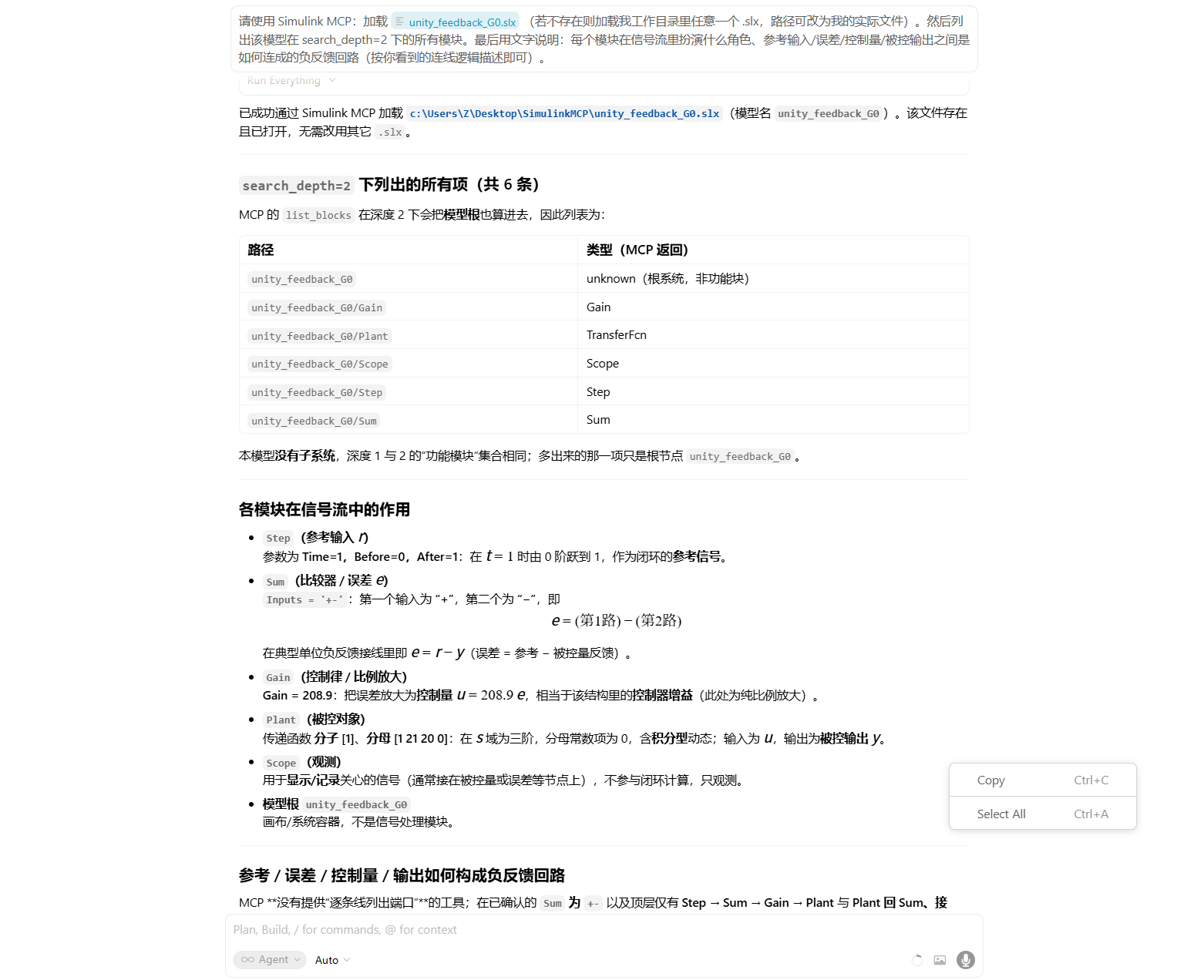
请使用 Simulink MCP:加载 F:/SimulinkModels/1.slx(若不存在则加载我工作目录里任意一个 .slx,路径可改为我的实际文件)。然后列出该模型在 search_depth=2 下的所有模块。最后用文字说明:每个模块在信号流里扮演什么角色、参考输入/误差/控制量/被控输出之间是如何连成的负反馈回路(按你看到的连线逻辑描述即可)。
预期效果: 返回模块路径列表 + 一段 信号流 / 反馈关系 的文字说明。
② 用基础模块搭一个 PID 控制器(禁止使用 PID Controller 现成模块)
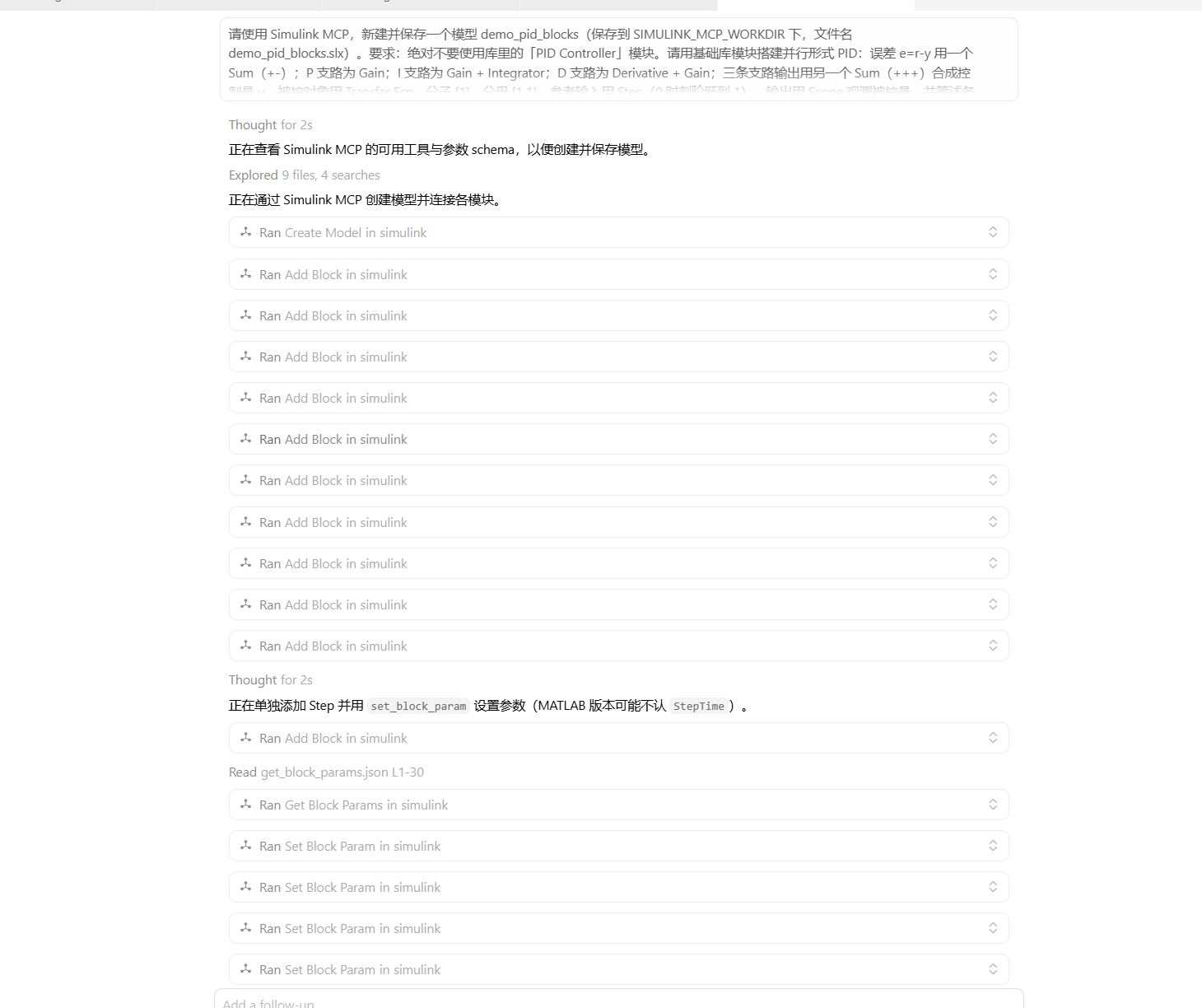
请使用 Simulink MCP,新建并保存一个模型 demo_pid_blocks(保存到 SIMULINK_MCP_WORKDIR 下,文件名 demo_pid_blocks.slx)。要求:绝对不要使用库里的「PID Controller」模块。请用基础库模块搭建并行形式 PID:误差 e=r-y 用一个 Sum(+-);P 支路为 Gain;I 支路为 Gain + Integrator;D 支路为 Derivative + Gain;三条支路输出用另一个 Sum(+++)合成控制量 u。被控对象用 Transfer Fcn,分子 [1]、分母 [1 1]。参考输入用 Step(0 时刻阶跃到 1)。输出用 Scope 观测被控量,并简述各模块名与参数。
预期效果: 得到新模型 demo_pid_blocks.slx,结构为 Step → 误差和 → P/I/D 三条支路 → 控制和 → 对象 → 反馈到误差和,全程无 PID Controller 模块。
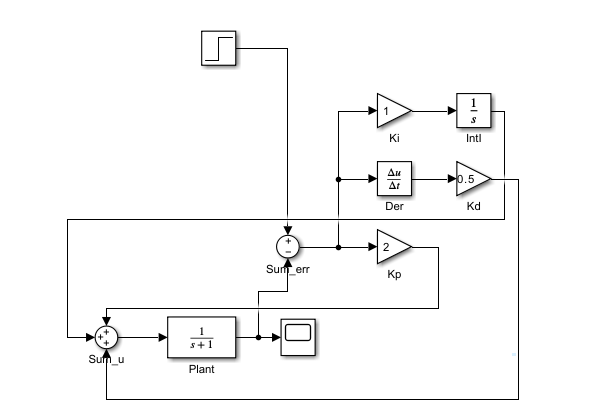
有时候AI搭出来的这些模块是叠在一起的,没有很好的排版,这个时候可以选中用Simulink自带的排版功能
也可以跟ai说重新排一遍格式,让模型好理解一点
③ 搭一个简单闭环回路并仿真看图
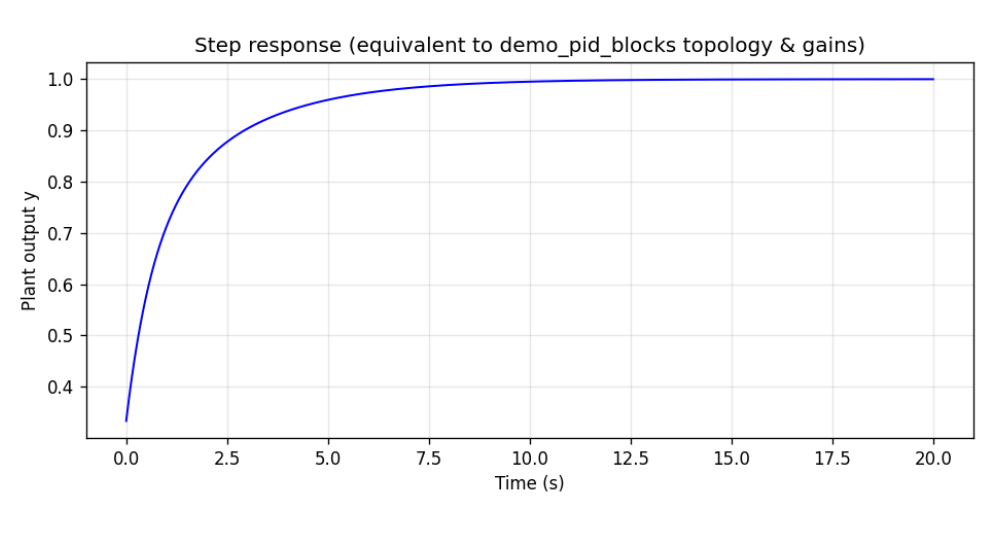
请使用 Simulink MCP:加载刚才的demo_pid_blocks.slx。确认模型里已有单位负反馈(参考、误差、控制器、对象、Scope)。然后调用 simulate:model_name 为 demo_pid_blocks,stop_time 为 20,return_figures 为 true。仿真结束后把返回的曲线图展示出来,并用一两句话描述被控量从阶跃响应看是否收敛、有无明显振荡。
预期效果: 对话中出现 simulate 返回的 PNG 曲线(来自 Scope 等);若报错「找不到模型」,请先执行 ② 或把路径改成你本机 .slx 的实际位置。
提示: 第一次调用 MCP 工具时 MATLAB 可能 冷启动 15~20 秒;若只有文字没有图,检查模型里是否接了 Scope 且
return_figures为 true。

十、参考链接
- 仓库:https://github.com/sohumsuthar/simulink-mcp
- MCP 协议:https://modelcontextprotocol.io
- MathWorks 文档:在官网搜索 MATLAB Engine for Python 与当前发行版的 Supported Python Versions
自動化天塌了?AI 替你畫 Simulink!Agent——MCP 配置踩坑指南(附真實環境實測)
本文整理自一次真實的 Windows 環境配置過程,面向已安裝 MATLAB / Simulink 與 Python,希望在 Cursor或者其他Agent 裡通過 Model Context Protocol (MCP) 讓 AI 直接操作 Simulink 模型的讀者。
來源:https://blog.csdn.net/2403_87969572/article/details/160805364
抓取時間(ISO本地):2026-05-18 05:17:43
前言
本文整理自一次真實的 Windows 環境配置過程,面向已安裝 MATLAB / Simulink 與 Python,希望在 Cursor或者其他Agent 裡通過 Model Context Protocol (MCP) 讓 AI 直接操作 Simulink 模型的讀者。
上游開源項目:sohumsuthar/simulink-mcp(許可證:PolyForm Noncommercial 1.0.0,商業用途請自行評估)。
一、你將得到什麼
配置完成後,Cursor 中的 AI 可以通過 MCP 調用約 14 個結構化工具,完成例如:
- 加載 / 關閉 / 保存
.slx模型 - 列舉模塊、讀寫參數、添加與刪除模塊、連線
- 讀取與設置求解器與模型配置
- 運行仿真並返回圖像或數據
MATLAB 採用懶啟動:MCP 握手很快,第一次真正調用工具時才會啟動 MATLAB 引擎,冷啟動常需 約 15~20 秒,屬正常現象。
在配置好這個mcp之後,你不需要在Simulink裡面頻繁拖拽、設置,只需要用自然語言和ai說你要建一個什麼樣的模型什麼樣的迴路出來,ai會用最快的速度幫你直接畫好。
二、環境與版本:最容易踩坑的一條鏈
整條鏈路要同時滿足三件事:
- MATLAB Engine for Python 支持你選的 Python 小版本(由 MATLAB 發行版決定)。
- 官方 Python 包
mcp(mcp[cli]>=1.2.0) 要求 Python ≥ 3.10。 - simulink-mcp 依賴上述
mcp,因此 實際跑 MCP 的解釋器必須是 3.10+,且與裝 Engine 的為同一個。
典型衝突(真實案例)
- 舊版 MATLAB(例如 R2022a)自帶的 Engine
setup.py僅聲明支持 Python 2.7 / 3.7 / 3.8 / 3.9,在 Python 3.10 上執行pip install .會直接報版本不支持。 - 若堅持用 Python 3.9 裝 Engine,則
mcp>=1.2.0無法安裝(PyPI 上該包要求 Python ≥ 3.10)。
結論: 要使用當前主線 simulink-mcp,一般需要 較新的 MATLAB(官方 README 多針對 R2024a/R2024b 一類環境測試)+ Python 3.10 或 3.11(具體以 MathWorks 對「MATLAB Engine for Python」的文檔為準,並避免使用尚未被 Engine 支持的過新版本,如部分環境下的 Python 3.13)。
三、確認 MATLAB 根目錄
已能打開 MATLAB 時,在 命令行執行:
matlabroot
記下輸出路徑(例如 F:\MATLAB2024)。Engine 源碼目錄為:
<matlabroot>\extern\engines\python
該目錄下應有 setup.py。在資源管理器中打開該路徑,便於後續在 PowerShell 裡 cd 過去。
四、安裝 MATLAB Engine for Python
4.1 選定「唯一」的 Python 解釋器
後面 Cursor MCP 的 command、pip install、import matlab.engine 自檢,必須指向同一個 python.exe(建議始終使用絕對路徑,避免混用 PATH 裡多個 python)。
4.2 推薦:在 Engine 目錄內執行 setup.py install
在 PowerShell 中(注意:調用帶路徑的可執行文件時,前面要加 &):
cd "<matlabroot>\extern\engines\python"
& "C:\Path\To\Python310\python.exe" setup.py install
為何不用簡單的 pip install .?
pip 有時會把源碼複製到臨時目錄再構建;在部分環境下會觸發 「安裝損壞」 等誤報。在 extern\engines\python 源碼目錄下直接 setup.py install,往往更穩定。
4.3 驗證 Engine
& "C:\Path\To\Python310\python.exe" -c "import matlab.engine; print('OK')"
應輸出 OK。
五、安裝 simulink-mcp
5.1 PyPI 包名說明
文檔或舊筆記裡可能出現 pip install simulink-mcp,但 PyPI 上未必存在同名包(或與你期望的倉庫不一致)。可靠方式是從 GitHub 克隆後本地安裝:
也可以直接到github上面整個壓縮包下載下來:https://github.com/sohumsuthar/simulink-mcp
cd C:\Path\To\simulink-mcp
5.2 PowerShell 調用 pip 的語法
& "C:\Path\To\Python310\python.exe" -m pip install .
5.3 依賴構建與 mcp:建議分步安裝
先升級構建鏈並安裝 mcp[cli](需能訪問 PyPI;若在國內,可換鏡像,但鏡像未同步時會出現「找不到包」):
Remove-Item Env:HTTP_PROXY,Env:HTTPS_PROXY,Env:ALL_PROXY,Env:http_proxy,Env:https_proxy,Env:all_proxy -ErrorAction SilentlyContinue

cd "C:\Path\To\simulink-mcp"
& "C:\Path\To\Python310\python.exe" -m pip install --upgrade pip setuptools wheel hatchling "mcp[cli]>=1.2.0" --index-url https://pypi.org/simple --trusted-host pypi.org --trusted-host files.pythonhosted.org
再安裝本項目(--no-build-isolation 可減少子進程重複拉取 hatchling 的失敗概率):
& "C:\Path\To\Python310\python.exe" -m pip install . --no-build-isolation --index-url https://pypi.org/simple --trusted-host pypi.org --trusted-host files.pythonhosted.org
5.4 網絡與代理問題(真實踩坑)
若出現 ProxyError('Cannot connect to proxy.', FileNotFoundError(...)):
- 可能與 VPN / 系統代理 / 環境變量
HTTP_PROXY/HTTPS_PROXY有關;關閉 VPN 後在新開 PowerShell 中重試。 - 清除當前會話代理變量(見上節
Remove-Item Env:...)。 - 檢查
netsh winhttp show proxy,必要時netsh winhttp reset proxy。 - 檢查
pip config list是否配置了無效proxy。
若出現 SSLError / 清華鏡像拉不到 hatchling:可臨時改用 官方 PyPI 並配合 --trusted-host(見上節命令)。
5.5 與「全家桶」裝在同一 Python 裡的提示
若該 Python 裡還裝有 TensorFlow、Streamlit 等,pip 可能提示 依賴版本衝突。對 simulink-mcp 來說,多數情況下仍能運行;若其它項目異常,建議日後為 MCP 單獨建 venv。
六、在 Cursor 中配置 MCP
6.1 工作目錄環境變量
| 變量名 | 含義 |
|---|---|
SIMULINK_MCP_WORKDIR | MATLAB 引擎啟動後 cd 的工作目錄;影響相對路徑加載與保存位置。 |
建議設為專門存放 .slx 的文件夾,例如 F:/SimulinkModels(JSON 中可用正斜槓或轉義反斜槓)。
6.2 用戶級 mcp.json 示例
路徑一般為:%USERPROFILE%\.cursor\mcp.json。
{
  "mcpServers": {
    "simulink": {
      "command": "C:/Users/你的用戶名/AppData/Local/Programs/Python/Python310/python.exe",
      "args": ["-m", "simulink_mcp"],
      "env": {
        "SIMULINK_MCP_WORKDIR": "F:/SimulinkModels"
      }
    }
  }
}
要點:
command務必使用 與安裝 Engine、simulink-mcp時相同的python.exe絕對路徑。- 每個 MCP 服務器獨立進程;只改
simulink的command不會自動改變其它 MCP(例如仍寫python跑腳本的服務)。 - 修改後 完全重啟 Cursor 或重載窗口,再在 Settings → MCP 中確認 simulink 為綠色、工具數量與文檔一致(例如 14 tools)。
七、自檢清單
| 檢查項 | 操作 |
|---|---|
| Python 小版本 | python -V,且與 Engine / mcp 要求一致 |
| Engine | python -c "import matlab.engine; print('OK')" |
| simulink-mcp | pip show simulink-mcp |
| MCP 解釋器一致 | mcp.json 中 command 與上面為同一 python.exe |
| 工作目錄 | 已設置 SIMULINK_MCP_WORKDIR,且文件夾存在 |
| 許可 | 非商業用途符合 PolyForm NC |
八、首次使用與排錯提示
- 第一次工具調用再啟動 MATLAB,請耐心等待。
- 若 MCP 報錯:看 Cursor MCP 日誌;任務管理器確認是否有 MATLAB 進程。
- 上游 README 提到:無效 Simulink 操作可能導致會話崩潰,可 重啟 MCP。
- 部分版本對 PID 等帶 mask 的模塊 有初始化要求,需按上游說明設置飽和與初值等參數。
九、測試示例
前置: 確認 Cursor → MCP 裡 simulink 已開啟;SIMULINK_MCP_WORKDIR 下有 .slx(或下面語句裡改成你的絕對路徑)。在 Agent 模式 且本對話 已啟用 Simulink MCP 工具 的窗口中,將下面三段 整段複製 到輸入框發送(可按順序 ①→②→③ 執行;② 會新建模型,不必先有文件)。
① 看有什麼模塊,並說明它們的關係
請使用 Simulink MCP:加載 F:/SimulinkModels/1.slx(若不存在則加載我工作目錄裡任意一個 .slx,路徑可改為我的實際文件)。然後列出該模型在 search_depth=2 下的所有模塊。最後用文字說明:每個模塊在信號流裡扮演什麼角色、參考輸入/誤差/控制量/被控輸出之間是如何連成的負反饋迴路(按你看到的連線邏輯描述即可)。
預期效果: 返回模塊路徑列表 + 一段 信號流 / 反饋關係 的文字說明。
② 用基礎模塊搭一個 PID 控制器(禁止使用 PID Controller 現成模塊)
請使用 Simulink MCP,新建並保存一個模型 demo_pid_blocks(保存到 SIMULINK_MCP_WORKDIR 下,文件名 demo_pid_blocks.slx)。要求:絕對不要使用庫裡的「PID Controller」模塊。請用基礎庫模塊搭建並行形式 PID:誤差 e=r-y 用一個 Sum(+-);P 支路為 Gain;I 支路為 Gain + Integrator;D 支路為 Derivative + Gain;三條支路輸出用另一個 Sum(+++)合成控制量 u。被控對象用 Transfer Fcn,分子 [1]、分母 [1 1]。參考輸入用 Step(0 時刻階躍到 1)。輸出用 Scope 觀測被控量,並簡述各模塊名與參數。
預期效果: 得到新模型 demo_pid_blocks.slx,結構為 Step → 誤差和 → P/I/D 三條支路 → 控制和 → 對象 → 反饋到誤差和,全程無 PID Controller 模塊。
有時候AI搭出來的這些模塊是疊在一起的,沒有很好的排版,這個時候可以選中用Simulink自帶的排版功能
也可以跟ai說重新排一遍格式,讓模型好理解一點
③ 搭一個簡單閉環迴路並仿真看圖
請使用 Simulink MCP:加載剛才的demo_pid_blocks.slx。確認模型裡已有單位負反饋(參考、誤差、控制器、對象、Scope)。然後調用 simulate:model_name 為 demo_pid_blocks,stop_time 為 20,return_figures 為 true。仿真結束後把返回的曲線圖展示出來,並用一兩句話描述被控量從階躍響應看是否收斂、有無明顯振盪。
預期效果: 對話中出現 simulate 返回的 PNG 曲線(來自 Scope 等);若報錯「找不到模型」,請先執行 ② 或把路徑改成你本機 .slx 的實際位置。
提示: 第一次調用 MCP 工具時 MATLAB 可能 冷啟動 15~20 秒;若只有文字沒有圖,檢查模型裡是否接了 Scope 且
return_figures為 true。
十、參考鏈接
- 倉庫:https://github.com/sohumsuthar/simulink-mcp
- MCP 協議:https://modelcontextprotocol.io
- MathWorks 文檔:在官網搜索 MATLAB Engine for Python 與當前發行版的 Supported Python Versions
automation collapsed? AI draws Simulink for you! Agent - MCP Configuration Stepping Pit Guide (with real environment measurement)
This Windows walkthrough installs the community simulink‑mcp server so agents such as Cursor can invoke roughly fourteen MCP tools—load/save/list models, add or rewire blocks, tweak solver flags, tweak parameters, and launch simulations returning figures or numerical traces—without hand‑dragging every block. Prerequisites include MATLAB’s Python engine matching a supported interpreter, Python ≥ 3.10 for Anthropic’s mcp CLI, and patience with MATLAB lazy start (~15‑20 s cold).
Crawl time (ISO local): 2026-05-18 05:17:43
Foreword
This article is compiled from a real Windows environment configuration process, for readers who have installed * * MATLAB/Simulink * * and * * Python * *, and want to let AI directly operate the Simulink model through * * Model Context Protocol (MCP) * * in * * Cursor or other Agents * *.
Upstream open source project: * * [sohumsuthar/simulink-mcp] (https://github.com/sohumsuthar/simulink-mcp) * * (license: * * PolyForm Noncommercial 1.0.0 * *, commercial use please evaluate yourself).
# # I. What you will get
After the configuration is complete, the AI in the Cursor can call about * * 14 structured tools * * through the MCP, for example:
- Load/Close/Save
.slxModel - List modules, read and write parameters, add and remove modules, connectivity
- Read and setup solver and model configurations
- Run the simulation and return the image or data
MATLAB uses * * lazy start * *: MCP shakes hands quickly, and the MATLAB engine is started only when * * the tool is actually called for the first time * *. Cold start often takes * * about 15 to 20 seconds * *, which is normal.
After configuring this mcp, you don’t need to drag and set it frequently in Simulink. You just need to use natural language and AI to say what kind of model you want to build and what kind of loop will come out. AI will help you draw it directly with the fastest speed.
# # II. environment and version: the easiest chain TO step ON
The whole link has to satisfy three things at the same time:
-
-
- MATLAB Engine for Python * * supports your choice of * * Python Minor * * (as determined by the * * MATLAB Distribution * *).
-
-
-
- Official Python package
mcp(mcp [cli] > = 1.2.0) * * Requirements * * Python ≥ 3.10 * *.
- Official Python package
-
-
-
- simulink-mcp * * relies on the above
mcp, so the interpreter for * * actually running MCP must be 3.10 + * * and the same as the one installed with Engine * * *.
- simulink-mcp * * relies on the above
-
# # # Typical Conflict (Real Case)
- Engine * *
setup.pyincluded with older versions of MATLAB (e.g. * * R2022a * *) only declares support for Python 2.7/3 .7/3.8/3 .9 * *, executepip installon * * Python 3.10 * *.`will be reported directly to version not supported. - If you insist on using * * Python 3.9 * * with the Engine, * *
mcp > = 1.2.0cannot be installed * * (Python ≥ 3.10 is required for this package on PyPI).
-
- Conclusion: * * To use the current mainline * * simulink-mcp * *, you generally need * * newer MATLAB * * (the official README is mostly tested for environments such as R2024a/R2024b) + * * Python 3.10 or 3.11 * * (specific to the MathWorks documentation for “MATLAB Engine for Python”, and avoid using newer versions that are not yet supported by the Engine, such as Python 3.13 in some environments).
# # III. Confirming the MATLAB root directory
When MATLAB is ready to be opened, execute on the * * command line * *:
matlabroot
Note the output path (e.g. F:\ MATLAB2024). The Engine source directory is:
<matlabroot>\extern\engines\python
Expected * * setup.py * * under this directory.Open the path in the explorer so that you can cd it later in PowerShell.!
[Insert image description here] (./1.png)
# # IV. Installing the MATLAB Engine for Python
# # # 4.1 Unique Python interpreter selected
After * * Cursor MCP’s command * *, pip install, import matlab.engine self-test, * * must * * point to * * the same * * python.exe (it is recommended to always use * * absolute path * *, avoid mixing multiple python in path).
# # # 4.2 Recommended: Execute setup.py install in the Engine directory
In * * PowerShell * * (Note: when calling an executable with a path, precede it with * * & * *):
cd "<matlabroot>\extern\engines\python"
& "C:\Path\To\Python310\python.exe" setup.py install
-
- Why not just
pip install.? * *
pipsometimes copies the source code to a temporary directory to rebuild; in some environments, false positives such as * * Installation corruption * * are triggered.* *setup.py install' * * directly under * *extern\ engines\ python` source directory * *, tends to be more stable.
- Why not just
# # # 4.3 Verifying the Engine
& "C:\Path\To\Python310\python.exe" -c "import matlab.engine; print('OK')"
OK should be output.
# # V. Installing simulink-mcp
# # # 5.1 PyPI Package Name Description
pip install simulink-mcp may appear in documents or old notes, but * * there may not be a package with the same name on PyPI * * (or it may not match your desired repository).* * Reliable way * * is to install locally after cloning from * * GitHub * *:
You can also download the entire archive directly on github:https://github.com/sohumsuthar/simulink-mcp
! [insert image description here] (./2.png)
cd C:\Path\To\simulink-mcp
# # # 5.2 Syntax for PowerShell calling pip
& "C:\Path\To\Python310\python.exe" -m pip install .
# # # 5.3 Dependency build with mcp: step-by-step installation recommended
Upgrade the build chain first and install * * mcp [cli] * * (need to be able to access PyPI; if in the country, you can change the image, but when the image is not synchronized, “Package not found” will appear):
Remove-Item Env:HTTP_PROXY,Env:HTTPS_PROXY,Env:ALL_PROXY,Env:http_proxy,Env:https_proxy,Env:all_proxy -ErrorAction SilentlyContinue

cd "C:\Path\To\simulink-mcp"
& "C:\Path\To\Python310\python.exe" -m pip install --upgrade pip setuptools wheel hatchling "mcp[cli]>=1.2.0" --index-url https://pypi.org/simple --trusted-host pypi.org --trusted-host files.pythonhosted.org
Reinstall this project (* * --no-build-isolation * * reduces the probability of failure of subprocesses to repeatedly pull hatchling):
& "C:\Path\To\Python310\python.exe" -m pip install . --no-build-isolation --index-url https://pypi.org/simple --trusted-host pypi.org --trusted-host files.pythonhosted.org
# # # 5.4 Network and proxy issues (real pitfalls)
In case of * * ProxyError (' Cannot connect to proxy. ', FileNotFoundError (...) * *:
- May be related to the * * VPN/system proxy/environment variable
HTTP_proxy/HTTPS_proxy* *; try again in the newly opened PowerShell after * * turning off VPN * *. - Clears the current session proxy variable (see
Remove-Item Env:...in the previous section). - Check * *
netsh winhttp show proxy* * and * *netsh winhttp reset proxy* * if necessary. - Check if * *
pip config list* * is configured with an invalidproxy.
If * * SSLError/Tsinghua mirror does not pull hatchling * *: you can temporarily switch to * * official PyPI * * and cooperate with * * ‘—trusted-host` * * (see the order in the previous section).
# # # 5.5 Tips for packing in the same Python as the Family Keg
If the Python also contains * * TensorFlow, Streamlit * *, etc., pip may prompt * * dependent version conflicts * *. For * * simulink-mcp * *, it can still run in most cases; if other projects are abnormal, it is recommended to build a * * separate venv * * for the MCP in the future.
# # VI. Configuring MCP in Cursor
# # # 6.1 Working directory environment variables
| Variable Name | Meaning |
|---|---|
Simulink_MCP_workdir | The working directory of * * cd * after the start of the MATLAB engine; affects relative path loading and saving locations. |
Recommended as a folder dedicated to .slx, for example F:/SimulinkModels (forward slash or escape backslash available in JSON).
# # # 6.2 User-level mcp.json example
! [insert image description here] (./3.png)! [Insert image description here] (./4.png)
The path is typically: * * % USERPROFILE %\ .cursor\ mcp.json * *.
“ `text { “mcpServers”: { “simulink”: { “command”: “C:/Users/Your username/AppData/Local/Programs/Python/Python310/python.exe”, “args”: [“-m”, “simulink_mcp”], “env”: { “Simulink_MCP_workdir”: “F:/SimulinkModels” } } } }
! [insert image description here] (./5.png)

MAIN POINTS

- * * `command` * * Always use * * the same `python.exe` absolute path as when installing Engine, `simulink-mcp' * *.
- * * Each MCP server is an independent process * *; changing only `command` of `simulink` * * does not * * automatically change other MCPs (such as services that still write `python` run scripts).
- After the modification, * * fully restart Cursor or reload the window * * and confirm in * * Settings → MCP * * that * * simulink * * is green and the number of tools matches the documentation (e.g. * * 14 tools * *).!
[Insert image description here] (./6.png)

---

# # # VII. Self-inspection checklist

| Checks | Actions |
| --- | --- |
| Minor version of Python | `python -V`, consistent with Engine/`mcp` requirements |
| Engine | `python -c "import matlab.engine; print (' OK ')"` |
| simulink-mcp | `pip show simulink-mcp` |
| MCP interpreter is consistent | `command` in `mcp.json` is the same as` python.exe `above |
| Working Directory | `Simulink_MCP_WORKDIR` is set and the folder exists |
| Licensing | Non-Commercial Use in accordance with PolyForm NC |

---

# # # VIII. Tips for first time use and troubleshooting

- * * First tool call * * before launching MATLAB, please be patient.
- If the MCP reports an error: look at the Cursor * * MCP Log * *; the Task Manager confirms if there is a * * MATLAB * * process.
- Upstream README mentions that invalid Simulink operations may cause the session to crash and the MCP can be * * restarted * *.
- Some versions have initialization requirements for modules with masks such as * * PID * *, and parameters such as saturation and initial value need to be set according to the upstream instructions.

---

# # # IX. Test Examples

* * Prefix: * * Confirm * * Cursor → MCP * * in * * simulink * * is on; `.slx' under `Simulink_MCP_workdir` (or change to your absolute path in the following sentence). In the window of * * Agent mode * * and this dialog * * Simulink MCP tool * * is enabled, copy the following three * * whole paragraphs * * to the input box (can be executed in order ①→ ②→ ③; ② A new model will be created without having to have a file first).

---

# # # # ① See what modules are available and explain their relationship

`` `text
Please use Simulink MCP: load F:/SimulinkModels/1.slx (if it does not exist, load any .slx in my working directory, the path can be changed to my actual file).Then list all the modules of the model under search_depth = 2.Finally, explain in words: what role each module plays in the signal flow, how the negative feedback loop is connected between the reference input/error/control amount/controlled output (as described by the wiring logic you see).
-
- Expected Effect: * * Back to Module Path List + a text description of a * * Signal Flow/Feedback Relationship * *.! [Insert image description here] (./7.png)
# # # ② Use the base module to set up a PID controller (PID Controller off-the-shelf module is prohibited)
“ `text Please use Simulink MCP to create and save a new model demo_pid_blocks (under Simulink_MCP_WORKDIR, file name demo_pid_blocks.slx).Required: Never use the PID Controller module in the library.Please use the basic library module to build a parallel form PID: the error e = r-y is a Sum (+ -); the P branch is a Gain; the I branch is a Gain + Integrator; the D branch is a Derivative + Gain; the output of the three branches is another Sum (+ + +) to compose the control amount u.The controlled object uses Transfer Fcn, numerator [1], denominator [1 1].Reference input with Step (0 moment step to 1).The output uses Scope to observe the controlled amount, and briefly describes the names and parameters of each module.
* * Expected effect: * * Get the new model * * `demo_pid_blocks.slx` * * with the structure of * * Step → error and → P/I/D three branch → control and → object → feedback to the error sum * *, no * * PID Controller * * module throughout.

! [insert image description here] (./8.png)!
[Insert image description here] (./9.png)
 * * Sometimes these modules made by AI are stacked together, and there is no good typography. At this time, you can choose to use Simulink's built-in typography function.
 You can also rearrange the format with AI to make the model understand better * *

---

# # # # ③ Take a simple closed-loop circuit and simulate the picture

`` `text
Please use Simulink MCP: load the demo_pid_blocks.slx just now.Confirm that there is unit negative feedback in the model (reference, error, controller, object, Scope).Then call simulate: model_name is demo_pid_blocks, stop_time is 20, return_figures is true.After the simulation, the returned graph is displayed, and one or two sentences are used to describe whether the controlled quantity converges and has obvious oscillations from the step response.
-
- Expected effect: * * The PNG curve returned by * *
simulateappears in the dialog * * (from Scope, etc.); if the error “model not found” is reported, please perform * * ② * * first or change the path to the actual position of your native `.slx’.
- Expected effect: * * The PNG curve returned by * *
- Tip: * * MATLAB may * * cold-start for 15-20 seconds * * when calling the MCP tool for the first time. If there is no figure in the text only, check whether * * Scope * * is connected to the model and
return_figuresis * * true * *.
! [insert image description here] (./10.png)! [Insert image description here] (./11.png)
# # X. Reference links
- Warehouse:https://github.com/sohumsuthar/simulink-mcp
- MCP protocol:https://modelcontextprotocol.io
- MathWorks documentation: Search the official website for * * MATLAB Engine for Python * * and the current distribution’s * * Supported Python Versions * *