解决Gemini无法进入显示 “Google Al Studio 和 Gemini AP| 的可用区域” 的问题
随着AI技术的普及,Google AI Studio中的Gemini模型成为不少开发者和创作者的常用工具。但很多用户在访问时会遇到一个棘手问题——无法成功进入平台,页面仅显示“Google AI Studio 和 Gemini API 的可用区域”列表,导致无法正常使用服务。这种情况并非单一原因导致,我结合自身排查经历和大量用户反馈,整理出三种核心场景及对应的全方位解决方法,帮你快速突破访问障碍。
前言
随着AI技术的普及,Google AI Studio中的Gemini模型成为不少开发者和创作者的常用工具。但很多用户在访问时会遇到一个棘手问题——无法成功进入平台,页面仅显示“Google AI Studio 和 Gemini API 的可用区域”列表,导致无法正常使用服务。这种情况并非单一原因导致,我结合自身排查经历和大量用户反馈,整理出三种核心场景及对应的全方位解决方法,帮你快速突破访问障碍。
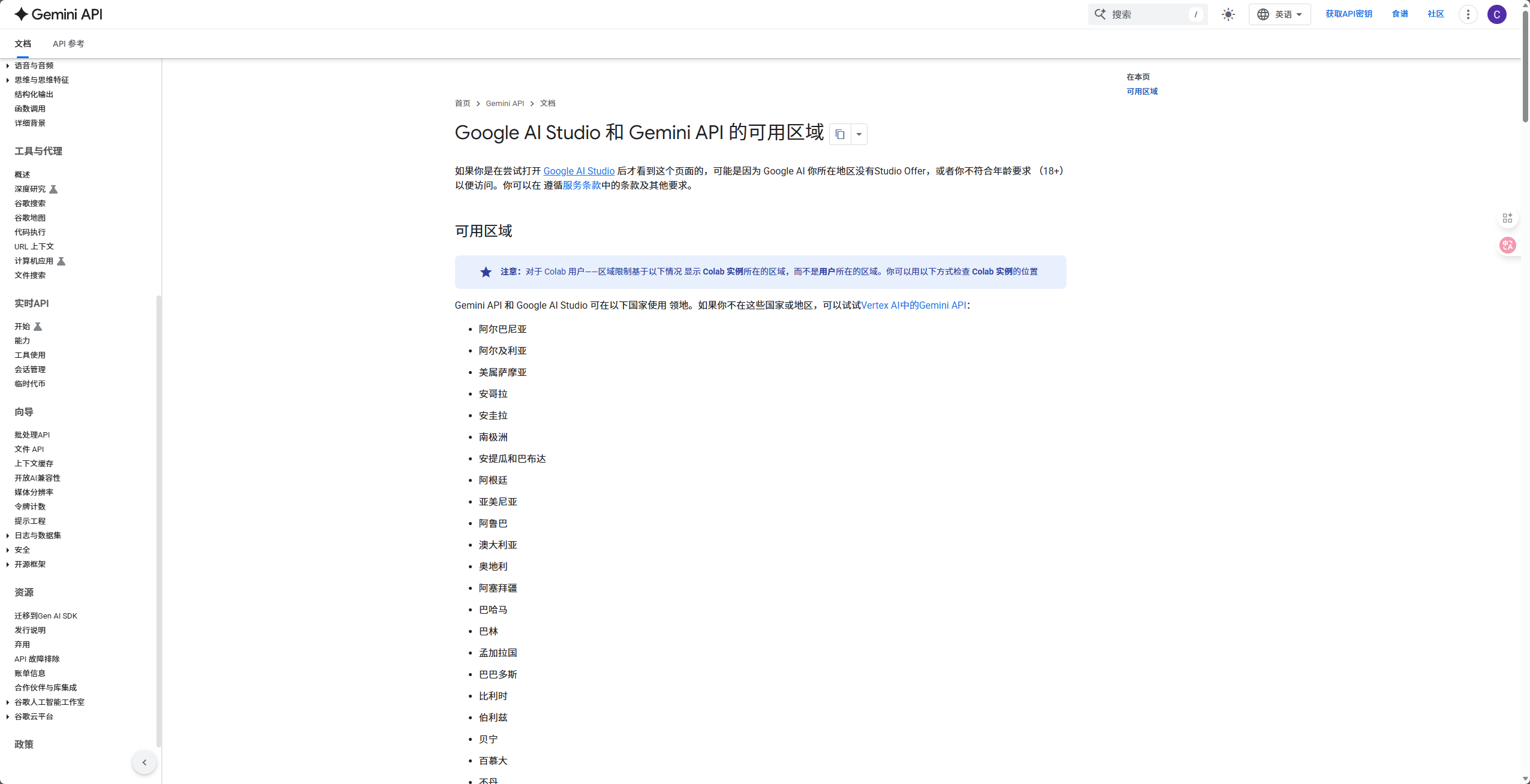
一、问题排查过程:从“无从下手”到“找到关键”
最初遇到这个问题时,我第一反应是账号出了问题。毕竟之前偶尔会遇到Google服务的账号权限限制,于是先尝试切换了另一个常用的Google账号重新访问,结果页面依旧停留在可用区域列表,没有任何进展。
接着我怀疑是网络连接不稳定,毕竟访问境外服务对网络要求较高。我重新连接了VPN,甚至更换了不同的网络运营商(从移动网络切换到宽带网络),但问题依然没有解决。这时候我意识到可能是VPN本身的问题,于是又尝试切换了多个VPN节点,从亚洲的新加坡节点换到欧洲的英国节点,再到北美的美国节点,可页面还是没有任何变化,依旧无法进入核心功能区。
最后才想到浏览器的缓存和Cookie可能会残留访问记录。之前访问其他境外服务时,也曾遇到过“旧访问记录导致新网络环境下无法正常访问”的情况。抱着试一试的心态,我清理了浏览器中与Google相关的Cookie,重新刷新页面后,竟然成功进入了Google AI Studio!由此我确定,Cookie残留是很多用户到这个问题的核心原因,同时也梳理出了另外两种可能的场景。
二、三种核心场景的原因分析
场景一:未挂VPN(概率较低)
这是最基础也最容易排查的情况。由于Google AI Studio属于境外服务,在国内网络环境下,未使用VPN的话,通常连“显示可用区域”的页面都无法加载,大概率会直接提示“无法访问此网站”。只有少数特殊网络环境下,才会出现“未挂VPN却能看到可用区域列表”的情况,核心原因是网络链路偶然穿透,但未满足Google的服务访问条件,最终被拦截在可用区域展示页。
场景二:挂了VPN,但节点地区不在可用区域内
Google对Gemini服务实施了严格的地区限制策略,仅对全球约140个国家和地区开放服务。其核心判断依据是用户访问时的IP地址来源——如果你的VPN节点所在地区不在Gemini的可用区域列表中,Google会直接拦截访问请求,仅展示可用区域列表供你参考。这种情况在使用免费VPN时尤为常见,因为免费VPN的节点通常质量较差,且多分布在未开放服务的地区。
场景三:Cookie残留记录了“不可用区域”的访问信息
这是最隐蔽也最容易被忽视的情况。如果之前你曾在“未挂VPN”或“使用不可用区域VPN节点”的状态下访问过Google AI Studio,浏览器会缓存此次访问的Cookie信息,其中包含了“不可用区域”的地理位置记录。即使之后你更换了可用区域的VPN节点,浏览器仍会向Google服务器发送旧的Cookie信息,导致Google误判你的地理位置依旧在不可用区域,从而持续展示可用区域列表,拒绝进入核心功能区。
三、对应三种场景的解决方法
第一步:针对场景一(未挂VPN)—— 启用合规VPN
解决思路非常简单:选择一款合规的VPN工具,完成安装和配置后,连接任意一个可用区域的节点(后续会说明如何查看可用区域),再重新访问Google AI Studio即可。需要注意的是,尽量选择稳定的VPN服务,避免使用免费VPN(免费VPN不仅节点质量差,还可能存在安全风险)。
第二步:针对场景二(VPN节点地区不可用)—— 切换至可用区域的VPN节点
- 查看可用区域:首先在当前展示的“可用区域”页面中,记录下任意一个可用的国家或地区(比如美国、英国、新加坡、日本等,这些都是Gemini服务的常用开放地区);
- 切换VPN节点:打开你的VPN工具,在节点列表中筛选并连接至刚才记录的可用区域节点。建议优先选择“原生IP”或“住宅IP”节点,这类节点被Google识别为“正常用户访问”的概率更高,稳定性也更好;
- 验证访问:连接成功后,刷新Google AI Studio页面。如果页面能正常跳转至登录后的核心功能区,说明问题已解决;如果依旧显示可用区域列表,则说明情况已经变换到场景三,需要执行下面第三步的Cookie清理操作。
第三步:针对场景三(Cookie残留)—— 精准清理Google相关Cookie(重点详解)
清理Cookie是解决此场景的核心步骤,但不建议直接删除全部Cookie——这样会导致所有网站的登录状态、保存的密码、个性化设置全部丢失,后续需要重新登录多个网站,非常繁琐。最稳妥的方式是“精准清理”,只删除与Google相关的Cookie,具体步骤以常用的Chrome浏览器为例(其他浏览器操作逻辑类似):
方案1:通过浏览器设置页面搜索清理(适合无法访问目标页面的情况)
- 点击Chrome浏览器右上角的“三个圆点”菜单图标,选择“设置”;
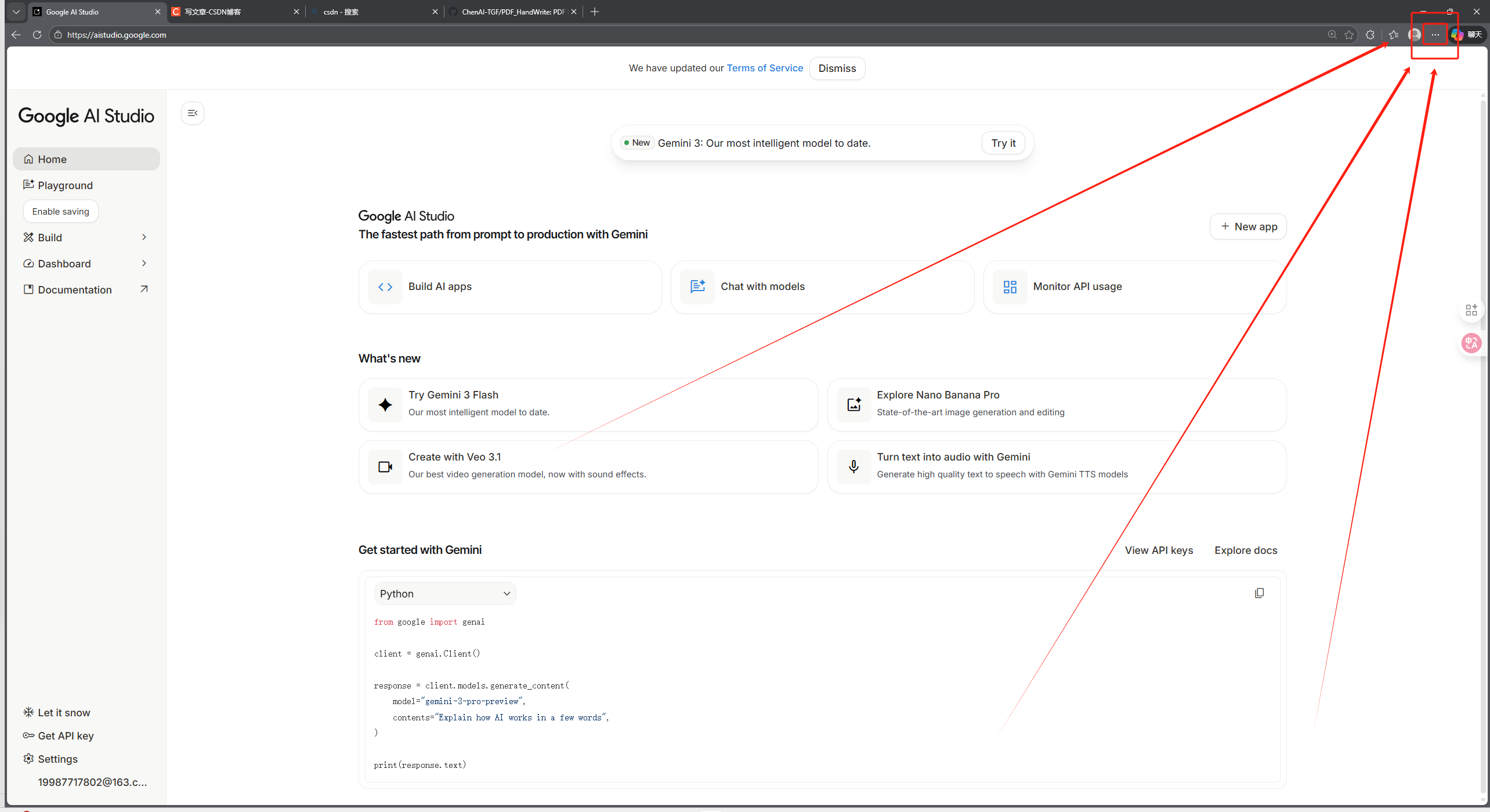
- 在设置页面左侧导航栏中,点击“管理Cookie”;
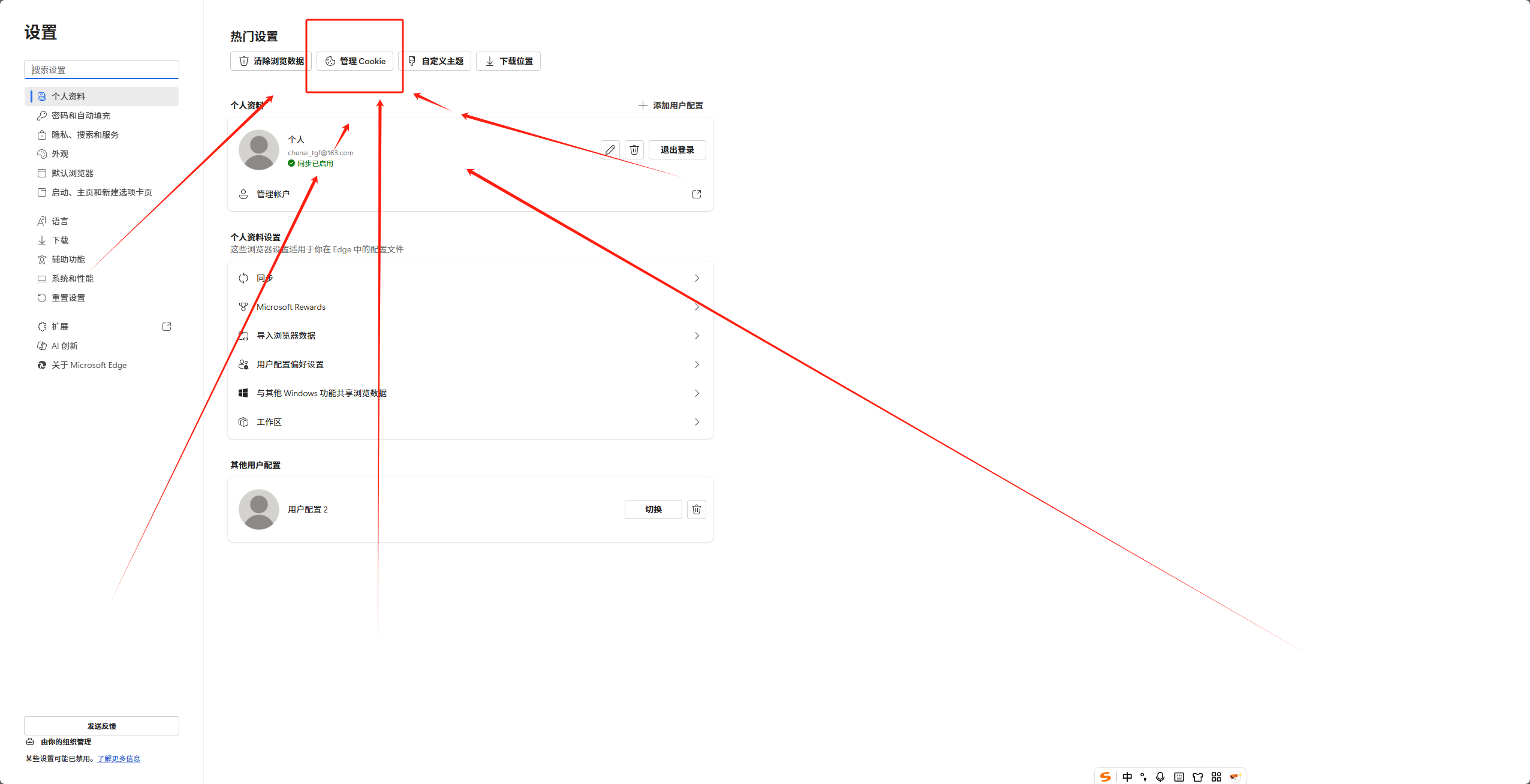
- 在管理Cookie页面中,点击“查看所有Cookies和站点设置”
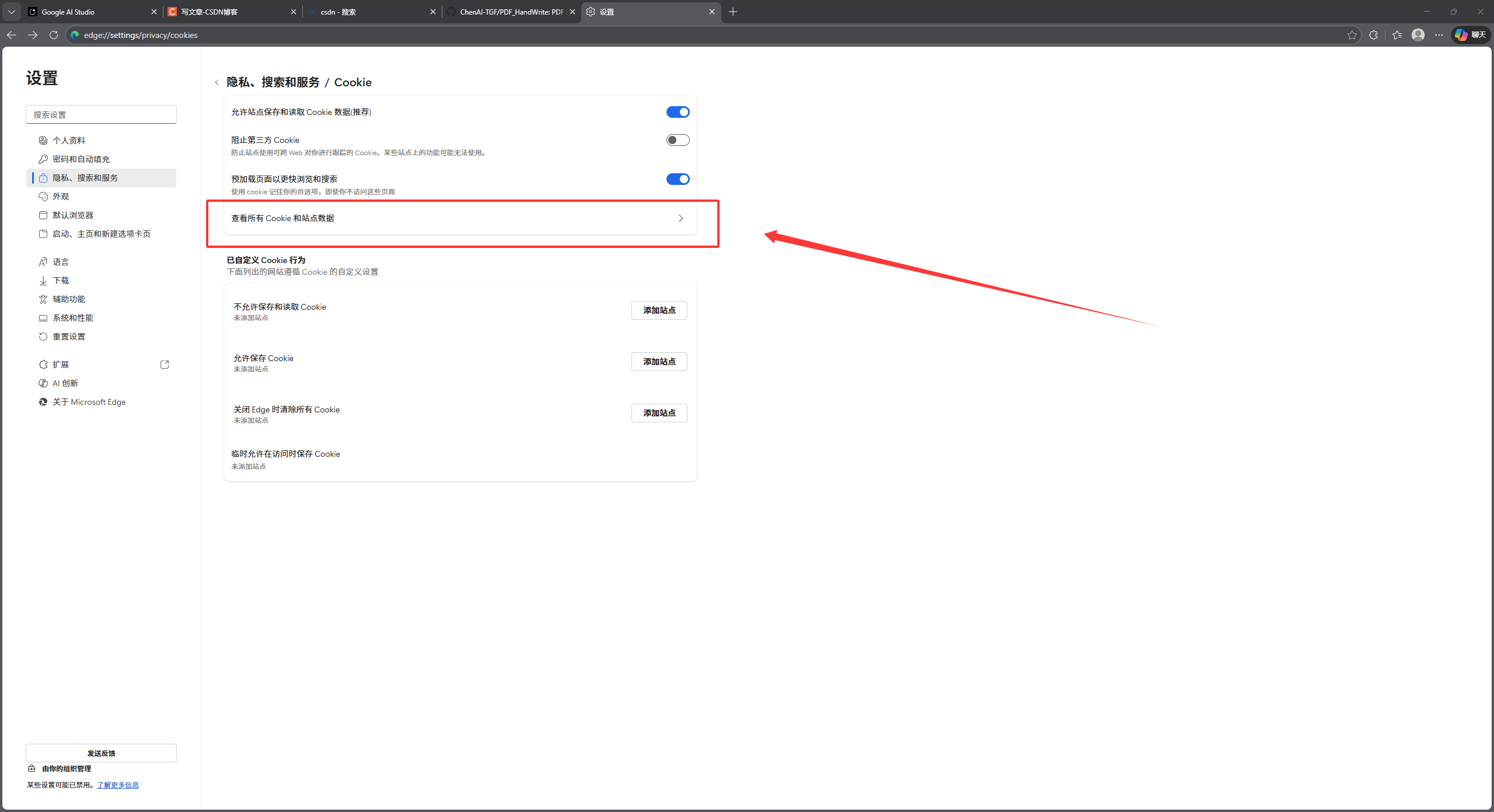
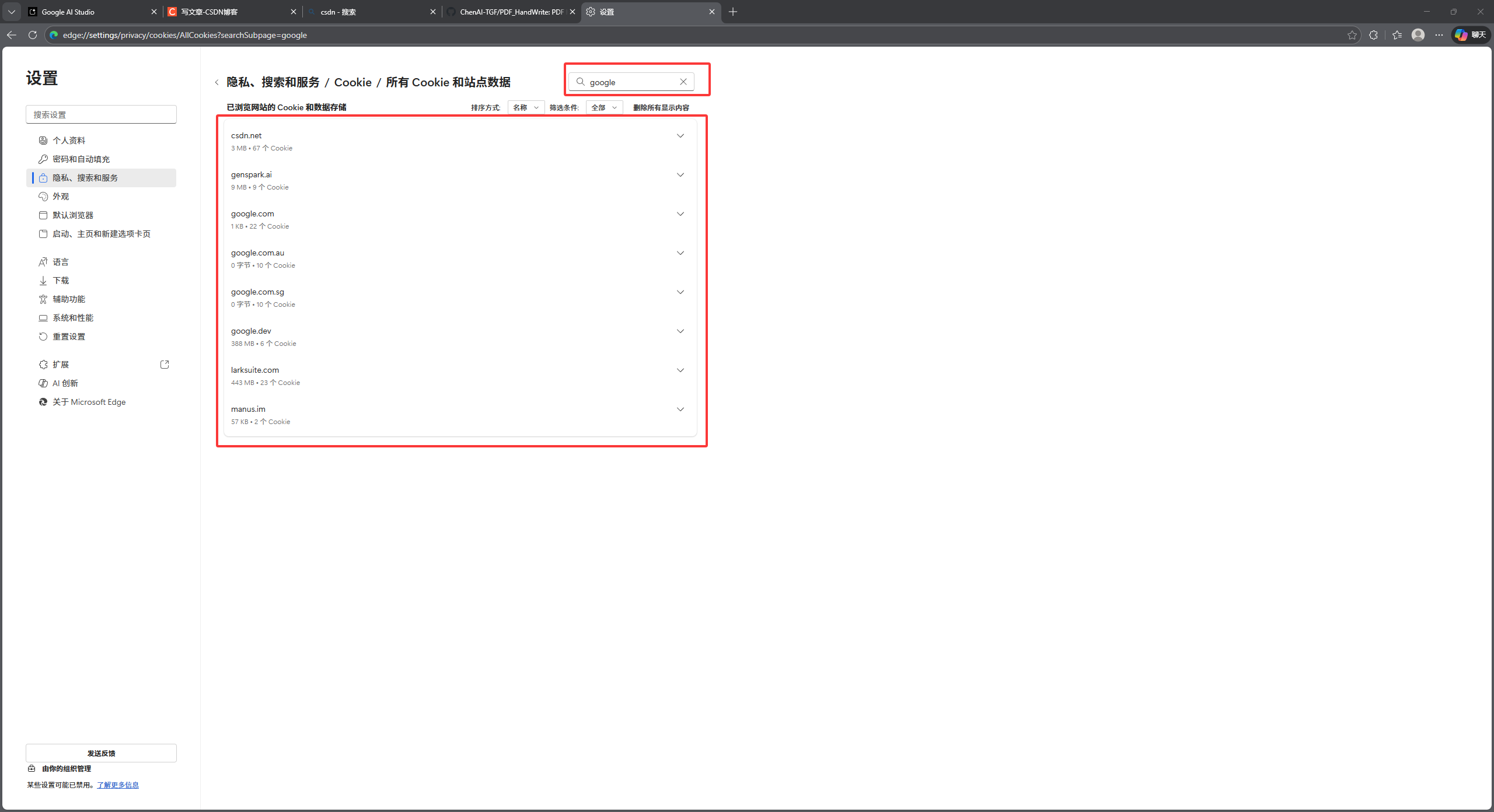
- 在顶部搜索框中输入“google”,页面会显示所有与Google相关的站点数据;
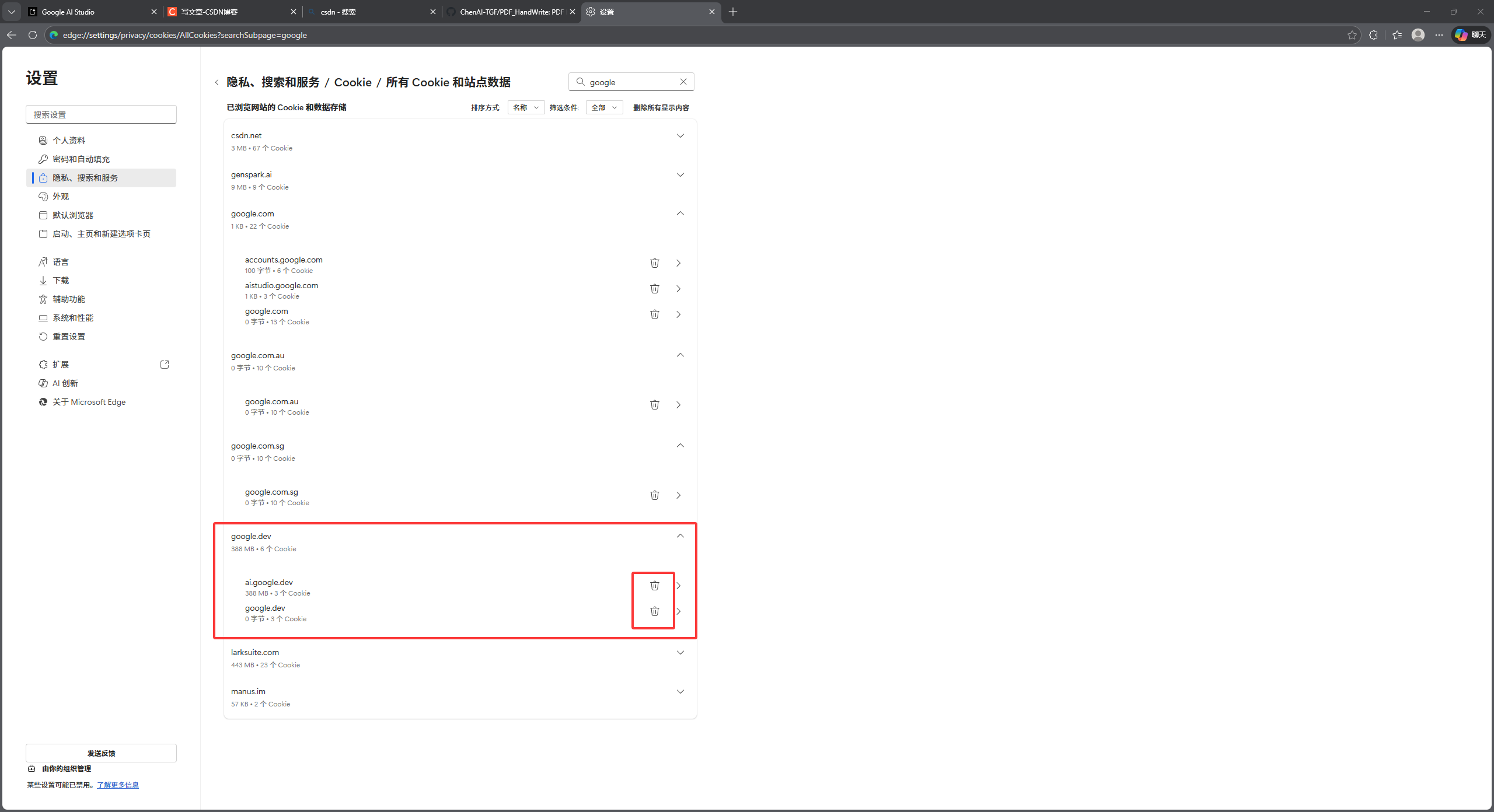
- 找到与“ai.google”“google.com”相关的条目,点击每条右侧的“三个圆点”图标,选择“删除”;不确定是哪个的话可以把google相关的都删了,反正这个影响不会很大。
- 删除完成后,重新连接VPN访问Google AI Studio即可。
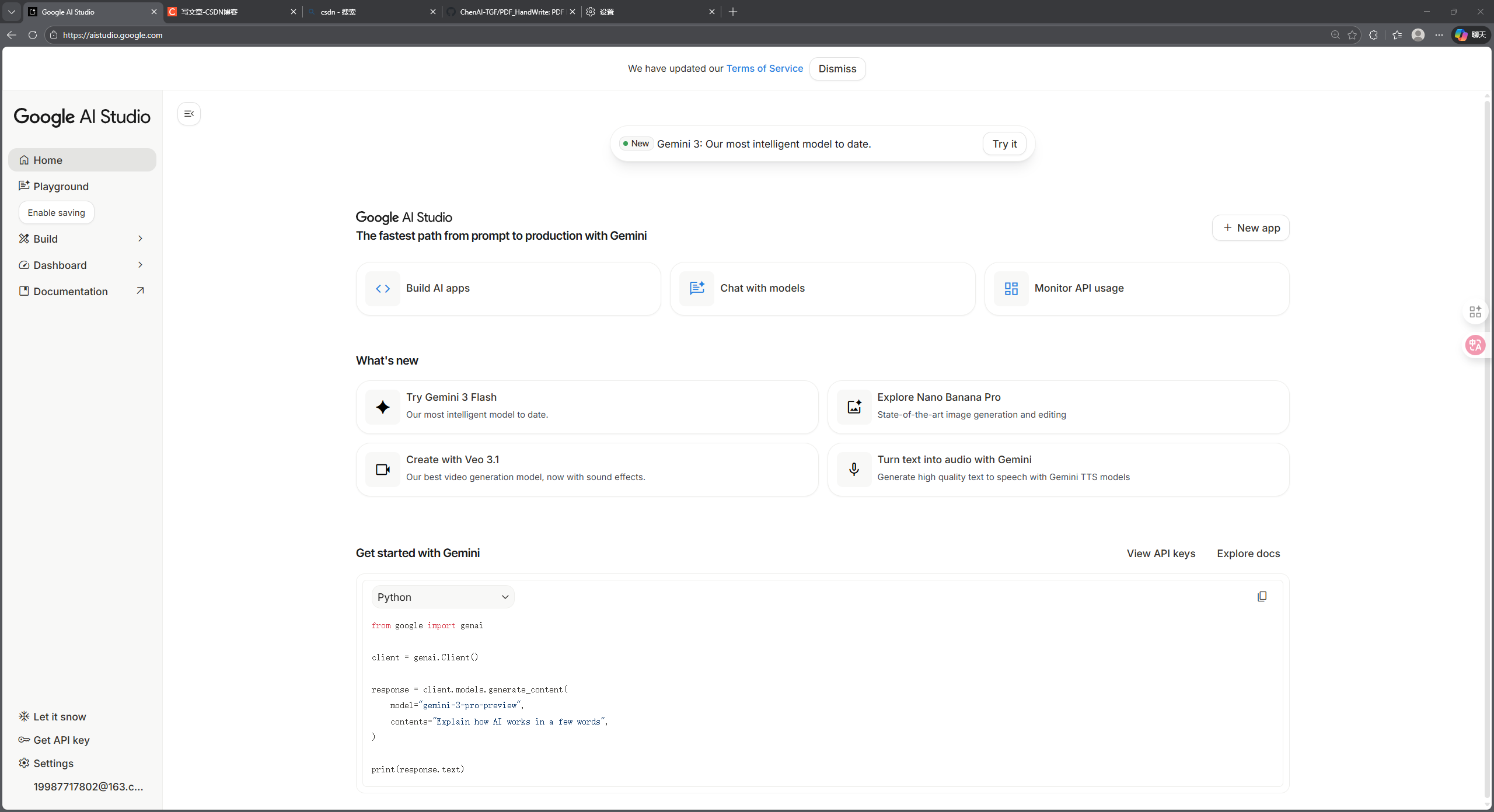
方案2:使用开发者工具快速清理(适合熟悉浏览器操作的用户)
-
打开Chrome浏览器,访问Google AI Studio页面;
-
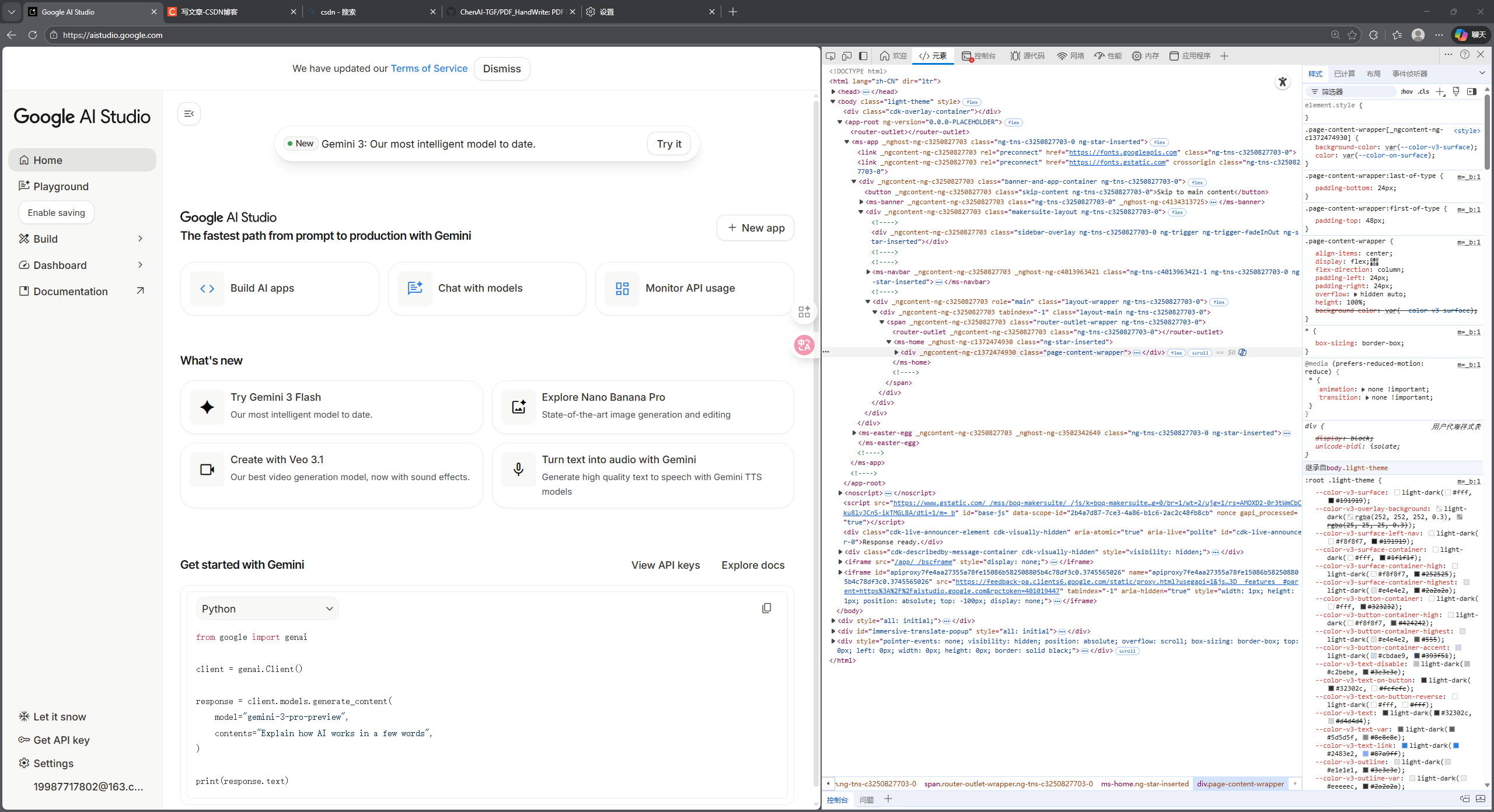
按下键盘快捷键:Windows系统按“F12”,Mac系统按“Command+Option+I”,打开开发者工具(或者右键然后点击“检查”)
-
在开发者工具顶部标签页中,选择“Application”(应用程序);
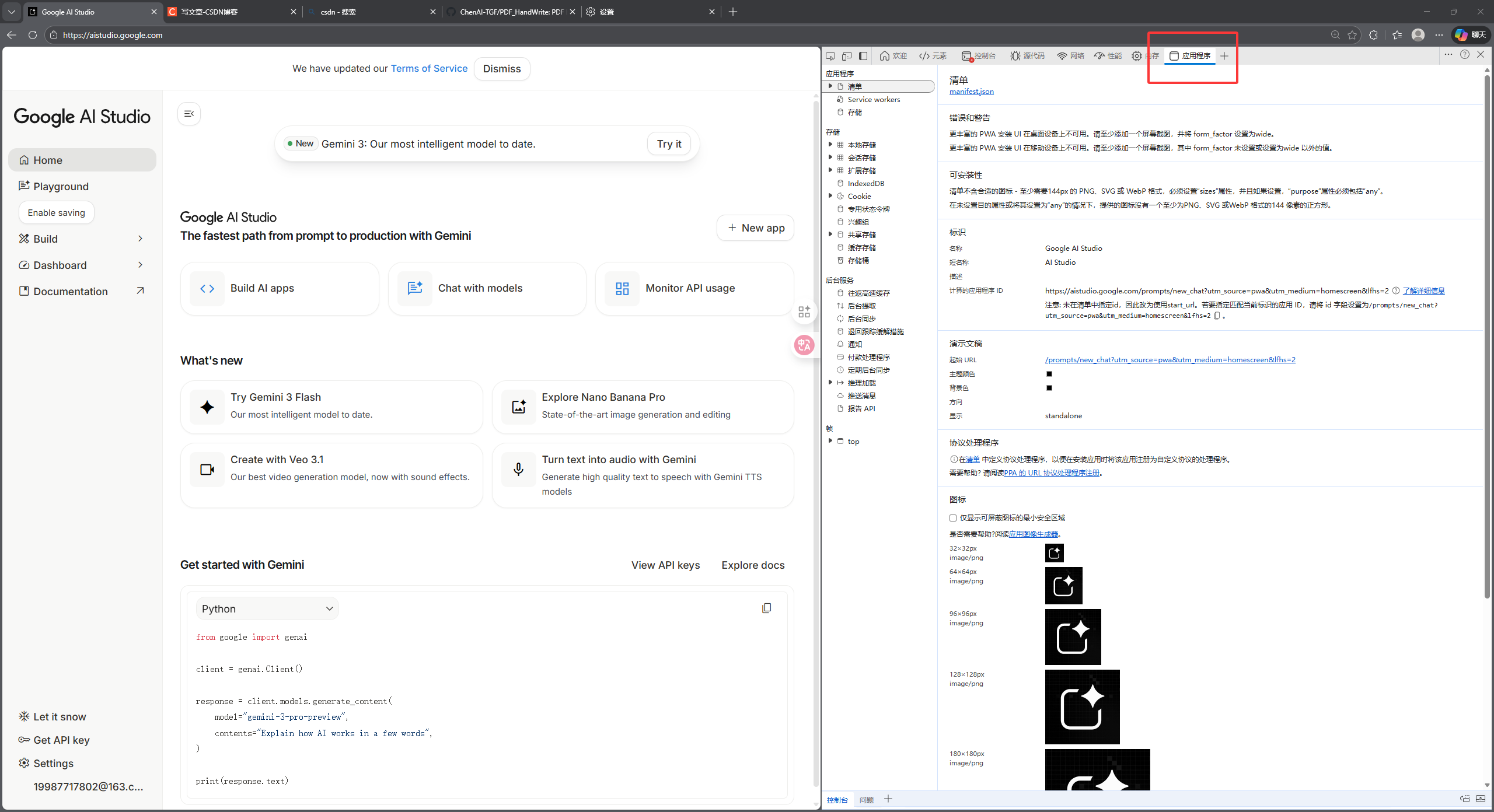
- 在左侧边栏中,展开“Cookies”选项,会看到当前页面的Google相关域名;
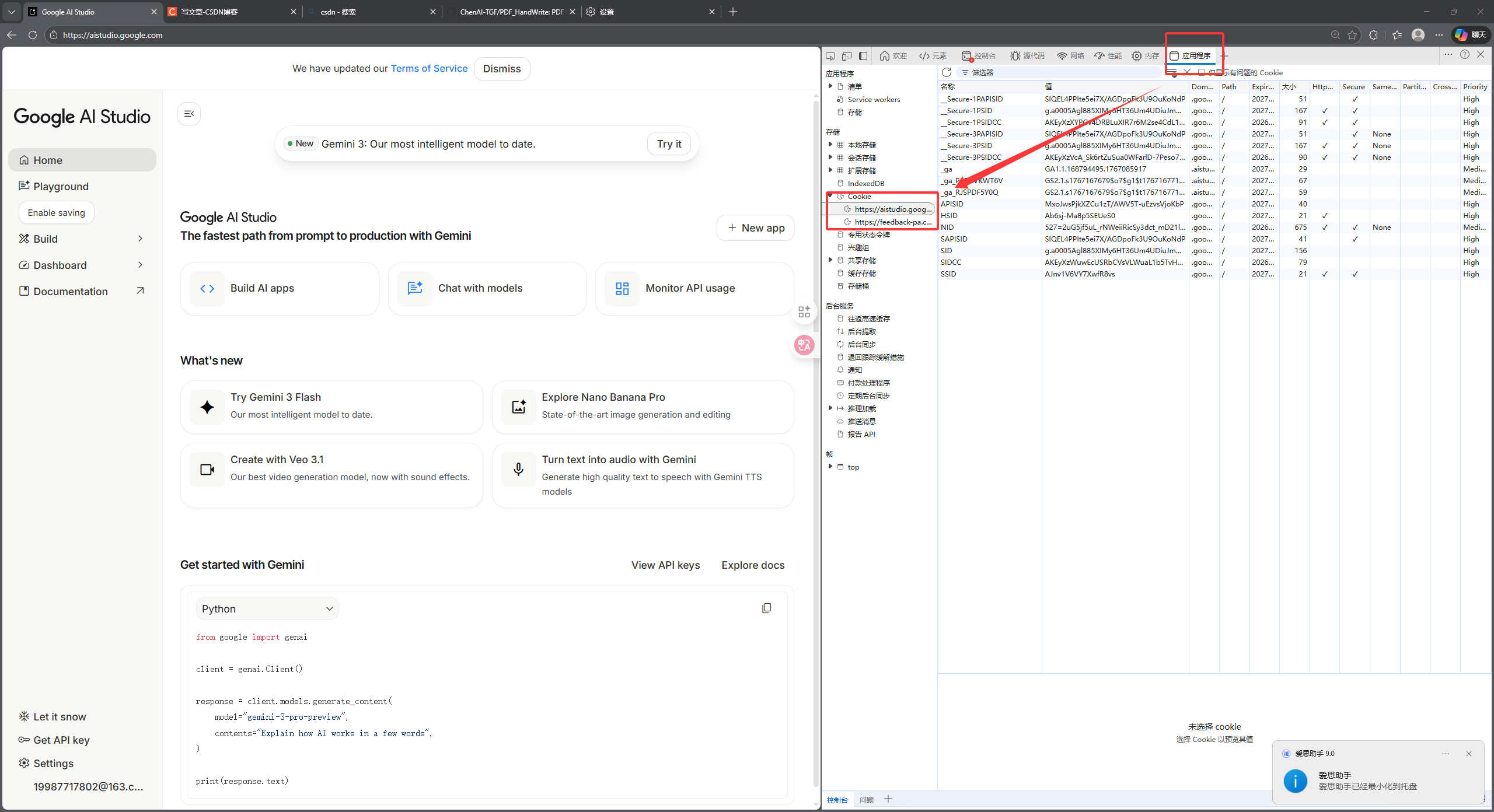
-
右键点击该域名,选择“清楚”(清除全部),即可删除该站点的所有Cookie;
-
关闭开发者工具,刷新页面,即可正常进入平台。
四、总结与注意事项
遇到Google AI Studio仅显示可用区域的问题时,建议按“先排查VPN是否启用→再检查VPN节点地区→最后清理Google相关Cookie”的顺序操作,效率最高。其中,Cookie残留是最容易被忽视的关键问题,精准清理Cookie既能解决问题,又能避免删除全部Cookie带来的麻烦。
另外需要注意:使用VPN访问境外服务时,需遵守所在国家和地区的相关法律法规;选择VPN时,优先选择付费、稳定的服务,避免使用共享IP过多的节点(这类节点容易被Google识别并限制访问)。如果清理Cookie后仍无法访问,可尝试更换浏览器(比如从Chrome换成Edge、Firefox)重新操作,通常能解决问题。
解決Gemini無法進入顯示 “Google Al Studio 和 Gemini AP| 的可用區域” 的問題
隨著AI技術的普及,Google AI Studio中的Gemini模型成為不少開發者和創作者的常用工具。但很多用戶在訪問時會遇到一個棘手問題——無法成功進入平臺,頁面僅顯示“Google AI Studio 和 Gemini API 的可用區域”列表,導致無法正常使用服務。這種情況並非單一原因導致,我結合自身排查經歷和大量用戶反饋,整理出三種核心場景及對應的全方位解決方法,幫你快速突破訪問障礙。
來源:https://blog.csdn.net/2403_87969572/article/details/156459562
抓取時間(ISO本地):2026-05-18 05:17:29
前言
隨著AI技術的普及,Google AI Studio中的Gemini模型成為不少開發者和創作者的常用工具。但很多使用者在訪問時會遇到一個棘手問題——無法成功進入平臺,頁面僅顯示“Google AI Studio 和 Gemini API 的可用區域”列表,導致無法正常使用服務。這種情況並非單一原因導致,我結合自身排查經歷和大量使用者反饋,整理出三種核心場景及對應的全方位解決方法,幫你快速突破訪問障礙。
一、問題排查過程:從“無從下手”到“找到關鍵”
最初遇到這個問題時,我第一反應是賬號出了問題。畢竟之前偶爾會遇到Google服務的賬號許可權限制,於是先嚐試切換了另一個常用的Google賬號重新訪問,結果頁面依舊停留在可用區域列表,沒有任何進展。
接著我懷疑是網路連線不穩定,畢竟訪問境外服務對網路要求較高。我重新連線了VPN,甚至更換了不同的網路運營商(從行動網路切換到寬頻網路),但問題依然沒有解決。這時候我意識到可能是VPN本身的問題,於是又嘗試切換了多個VPN節點,從亞洲的新加坡節點換到歐洲的英國節點,再到北美的美國節點,可頁面還是沒有任何變化,依舊無法進入核心功能區。
最後才想到瀏覽器的快取和Cookie可能會殘留訪問記錄。之前訪問其他境外服務時,也曾遇到過“舊訪問記錄導致新網路環境下無法正常訪問”的情況。抱著試一試的心態,我清理了瀏覽器中與Google相關的Cookie,重新重新整理頁面後,竟然成功進入了Google AI Studio!由此我確定,Cookie殘留是很多使用者到這個問題的核心原因,同時也梳理出了另外兩種可能的場景。
二、三種核心場景的原因分析
場景一:未掛VPN(機率較低)
這是最基礎也最容易排查的情況。由於Google AI Studio屬於境外服務,在國內網路環境下,未使用VPN的話,通常連“顯示可用區域”的頁面都無法載入,大機率會直接提示“無法訪問此網站”。只有少數特殊網路環境下,才會出現“未掛VPN卻能看到可用區域列表”的情況,核心原因是網路鏈路偶然穿透,但未滿足Google的服務訪問條件,最終被攔截在可用區域展示頁。
場景二:掛了VPN,但節點地區不在可用區域內
Google對Gemini服務實施了嚴格的地區限制策略,僅對全球約140個國家和地區開放服務。其核心判斷依據是使用者訪問時的IP地址來源——如果你的VPN節點所在地區不在Gemini的可用區域列表中,Google會直接攔截訪問請求,僅展示可用區域列表供你參考。這種情況在使用免費VPN時尤為常見,因為免費VPN的節點通常質量較差,且多分佈在未開放服務的地區。
場景三:Cookie殘留記錄了“不可用區域”的訪問資訊
這是最隱蔽也最容易被忽視的情況。如果之前你曾在“未掛VPN”或“使用不可用區域VPN節點”的狀態下訪問過Google AI Studio,瀏覽器會快取此次訪問的Cookie資訊,其中包含了“不可用區域”的地理位置記錄。即使之後你更換了可用區域的VPN節點,瀏覽器仍會向Google伺服器傳送舊的Cookie資訊,導致Google誤判你的地理位置依舊在不可用區域,從而持續展示可用區域列表,拒絕進入核心功能區。
三、對應三種場景的解決方法
第一步:針對場景一(未掛VPN)—— 啟用合規VPN
解決思路非常簡單:選擇一款合規的VPN工具,完成安裝和配置後,連線任意一個可用區域的節點(後續會說明如何檢視可用區域),再重新訪問Google AI Studio即可。需要注意的是,儘量選擇穩定的VPN服務,避免使用免費VPN(免費VPN不僅節點質量差,還可能存在安全風險)。
第二步:針對場景二(VPN節點地區不可用)—— 切換至可用區域的VPN節點
- 檢視可用區域:首先在當前展示的“可用區域”頁面中,記錄下任意一個可用的國家或地區(比如美國、英國、新加坡、日本等,這些都是Gemini服務的常用開放地區);
- 切換VPN節點:開啟你的VPN工具,在節點列表中篩選並連線至剛才記錄的可用區域節點。建議優先選擇“原生IP”或“住宅IP”節點,這類節點被Google識別為“正常使用者訪問”的機率更高,穩定性也更好;
- 驗證訪問:連線成功後,重新整理Google AI Studio頁面。如果頁面能正常跳轉至登入後的核心功能區,說明問題已解決;如果依舊顯示可用區域列表,則說明情況已經變換到場景三,需要執行下面第三步的Cookie清理操作。
第三步:針對場景三(Cookie殘留)—— 精準清理Google相關Cookie(重點詳解)
清理Cookie是解決此場景的核心步驟,但不建議直接刪除全部Cookie——這樣會導致所有網站的登入狀態、儲存的密碼、個性化設定全部丟失,後續需要重新登入多個網站,非常繁瑣。最穩妥的方式是“精準清理”,只刪除與Google相關的Cookie,具體步驟以常用的Chrome瀏覽器為例(其他瀏覽器操作邏輯類似):
方案1:透過瀏覽器設定頁面搜尋清理(適合無法訪問目標頁面的情況)
- 點選Chrome瀏覽器右上角的“三個圓點”選單圖示,選擇“設定”;
- 在設定頁面左側導航欄中,點選“管理Cookie”;
- 在管理Cookie頁面中,點選“檢視所有Cookies和站點設定”
- 在頂部搜尋框中輸入“google”,頁面會顯示所有與Google相關的站點資料;
- 找到與“ai.google”“google.com”相關的條目,點選每條右側的“三個圓點”圖示,選擇“刪除”;不確定是哪個的話可以把google相關的都刪了,反正這個影響不會很大。
- 刪除完成後,重新連線VPN訪問Google AI Studio即可。
方案2:使用開發者工具快速清理(適合熟悉瀏覽器操作的使用者)
-
開啟Chrome瀏覽器,訪問Google AI Studio頁面;
-
按下鍵盤快捷鍵:Windows系統按“F12”,Mac系統按“Command+Option+I”,開啟開發者工具(或者右鍵然後點選“檢查”)
-
在開發者工具頂部標籤頁中,選擇“Application”(應用程式);
- 在左側邊欄中,展開“Cookies”選項,會看到當前頁面的Google相關域名;
-
右鍵點選該域名,選擇“清楚”(清除全部),即可刪除該站點的所有Cookie;
-
關閉開發者工具,重新整理頁面,即可正常進入平臺。
四、總結與注意事項
遇到Google AI Studio僅顯示可用區域的問題時,建議按“先排查VPN是否啟用→再檢查VPN節點地區→最後清理Google相關Cookie”的順序操作,效率最高。其中,Cookie殘留是最容易被忽視的關鍵問題,精準清理Cookie既能解決問題,又能避免刪除全部Cookie帶來的麻煩。
另外需要注意:使用VPN訪問境外服務時,需遵守所在國家和地區的相關法律法規;選擇VPN時,優先選擇付費、穩定的服務,避免使用共享IP過多的節點(這類節點容易被Google識別並限制訪問)。如果清理Cookie後仍無法訪問,可嘗試更換瀏覽器(比如從Chrome換成Edge、Firefox)重新操作,通常能解決問題。
Resolve an issue where Gemini is unable to access the "Available Areas for Google Al Studio and Gemini AP |" display
Crawl time (ISO local): 2026-05-18 05:17:29 With the popularity of AI technology, the Gemini model in Google AI Studio has become a common tool for many developers and creators.But many users encounter a tricky issue when accessing the platform - they can't successfully access the platform, an
Crawl time (ISO local): 2026-05-18 05:17:29
Foreword
With the popularity of AI technology, the Gemini model in Google AI Studio has become a common tool for many developers and creators. But many users encounter a tricky issue when accessing the platform - they can’t successfully access the platform, and the page only shows the list of “Available areas for Google AI Studio and Gemini API”, which makes it impossible to use the service properly. This situation is not caused by a single cause. Combining my own investigation experience and a lot of user feedback, I have sorted out three core scenarios and corresponding comprehensive solutions to help you quickly break through the access barriers.
! [insert image description here] (./1.png)
# First, the troubleshooting process: from “no way to start” to “find the key”
When I first encountered this issue, my first reaction was that something was wrong with my account. After all, we occasionally encountered account restrictions on Google services, so we first tried to switch to another commonly used Google account to revisit, and the page still stayed in the list of available areas without any progress.
Then I suspected that the network connection was unstable, after all, accessing overseas services was more demanding on the network. I reconnected to a VPN and even switched to a different network operator (switching from a mobile network to a broadband network), but the issue remained unresolved. At this time, I realized that it may be the problem of the VPN itself, so I tried to switch multiple VPN nodes, from the Singapore node in Asia to the UK node in Europe, and then to the US node in North America, but the page still did not change, still unable to enter the core functional area.
Finally, it comes to mind that your browser’s cache and cookies may leave a record of your visits. In the past, when visiting other overseas services, we have also encountered situations where ”* * old access records make it impossible to access normally in the new network environment * *”. With the mentality of giving it a try, I cleaned up the Google-related cookies in my browser, refreshed the page, and successfully entered Google AI Studio! From this, I determined that cookie persistence is the core cause of this problem for many users, and also sorted out two other possible scenarios.
# Analysis of the reasons for the two or three core scenarios
# # Scenario 1: VPN not hanging (low probability)
This is the most basic and easiest to troubleshoot. Since Google AI Studio is an overseas service, in the domestic network environment, if you do not use a VPN, usually even the page of “Show available areas” cannot be loaded, and there is a high probability that it will directly prompt “This website cannot be accessed”. Only in a few special network environments will the situation of “not hanging VPN but can see the list of available areas” occur. The core reason is that the network link accidentally penetrates, but does not meet Google’s service access conditions, and finally is blocked on the display page of available areas.
# # Scenario 2: VPN hangs up, but the node area is not in the available area
Google has implemented a strict regional restriction policy on the Gemini service, which is only available in about 140 countries and regions around the world. The core judgment is based on the source of the IP address when the user visits - if your VPN node is not in the list of available zones in Gemini, Google will directly block the access request, and only show the list of available zones for your reference. This is especially common when using a free VPN, as free VPN nodes are often of poor quality and distributed in areas where services are not available.
# # Scenario 3: Cookie residue records access information for “unavailable areas”
This is the most hidden and most easily overlooked situation. If you have previously accessed * * Google AI Studio * * with * * VPN Not Hanging * * or * * VPN Node Using Unavailable Areas * *, your browser will cache the cookie information for this visit, which contains a geolocation record of the Unavailable Areas. Even if you replace the VPN node in the available zone after that, the browser will still send the old cookie information to Google’s servers, causing Google to mistakenly assume that your geographical location is still unavailable, thus continuously displaying the list of available zones and refusing to enter the core ribbon.
# III. Solutions for the Three Scenarios
# # Step 1: For Scenario 1 (no VPN hanging) - Enable a compliant VPN
The solution is simple: choose a compliant VPN tool, after installation and configuration, connect to a node in any of the available zones (instructions on how to view the available zones will follow), and then revisit Google AI Studio. It’s important to note that try to choose a stable VPN service and avoid using a free VPN (which not only has poor node quality, but can also be a security risk).
# # Step 2: For Scenario Two (VPN Node Region Not Available) - Switch to a VPN Node in the Availability Zone
- View the available areas: First, in the “Available Areas” page currently displayed, record any available country or region (such as the United States, the United Kingdom, Singapore, Japan, etc., which are common open areas for Gemini services);
- Switch VPN nodes: Open your VPN tool, filter in the node list and connect to the available zone nodes you just logged.It is recommended to prioritize “native IP” or “residential IP” nodes, which are recognized by Google as “normal user access” with a higher probability and better stability;
- Verify access: Once connected, refresh the Google AI Studio page.If the page can be redirected to the core functional area after logging in, the problem is resolved; * * if the list of available areas is still displayed, the situation has changed to scenario three, and the cookie cleaning operation in the third step below needs to be performed. * *
# # Step 3: Scenario 3 (cookie residue) - Accurately clean Google-related cookies (focus on details)
Clearing cookies is a core step in solving this scenario, but * * it is not recommended to delete all cookies directly * * - this will cause all websites to lose their login status, saved passwords, and personalized settings. Subsequent logins to multiple websites are very cumbersome. The safest way to do this is’ precision cleaning ’, where only Google-related cookies are deleted, using the usual Chrome browser as an example (other browsers operate similarly):
# # # Option 1: Search and clean through the browser settings page (suitable for cases where the target page cannot be accessed)
- Click the “Three Dots” menu icon in the top right corner of Chrome and select “Settings”;
- In the left navigation bar of the settings page, click * * Manage cookies * *;
! [insert image description here] (./3.png)
- On the * * Manage cookies * * page, click on * * View all cookies and site settings * *
! [insert image description here] (./4.png)
- Enter “google” in the top search box, and the page will display all Google-related site data;
! [insert image description here] (./5.png)
- Find the items related to “ai.google” and “google.com”, click the “three dots” icon on the right of each one, and select “delete”; if you are not sure which one, you can delete all the Google-related items, anyway, this will not have a big impact.
! [insert image description here] (./6.png)
- Once the deletion is complete, reconnect to the VPN to access Google AI Studio.
! [insert image description here] (./7.png)
# # # Option 2: Quick Cleanup with Developer Tools (for users who are familiar with browser operations)
- Open the Chrome browser and visit the Google AI Studio page;
- Press the keyboard shortcut: Windows press “F12”, Mac press “Command + Option + I”, open the developer tools (or right-click and click “Check”)
!
[Insert image description here] (./8.png) - In the top tab of the Developer Tools, select “Application”;
! [insert image description here] (./9.png)
- In the left sidebar, expand the “Cookies” option and you will see the Google-related domain name of the current page;
! [insert image description here] (./10.png)
-
Right-click on the domain name and select Clear (clear all) to delete all cookies on the site;
-
Close the developer tools and refresh the page to enter the platform normally.
# # IV. Summary and Precautions
When you encounter the problem that Google AI Studio only shows the available areas, it is recommended to follow the order of “Check whether the VPN→ is enabled first and→ then check the VPN node area to clean up Google-related cookies”, which is the most efficient. Among them, cookie residue is the most overlooked key issue. Precise cleaning of cookies can solve the problem and avoid the trouble of deleting all cookies.
In addition, it should be noted that when using a VPN to access overseas services, you must comply with the relevant laws and regulations of the country and region in which you are located; when choosing a VPN, you should first choose a paid and stable service, and avoid using nodes with too much shared IP (such nodes are easy to be recognized by Google and limited access). If you still can’t access the cookie after cleaning it, you can try changing your browser (for example, from Chrome to Edge, Firefox) again, which usually solves the problem.