报错解决:Non-UTF-8 code starting with 和 ‘utf-8‘ codec can‘t decode byte 0xb2 in position 0: ....(已解决)
整理 Python 「SyntaxError: Non-UTF-8 …」与 UnicodeDecodeError: utf-8 codec can't decode 的定位顺序:源码声明、文件真实编码 VS 编辑器默认值、控制台代码页、python -X utf8,以及在必须兼容旧 GBK 数据时的变通策略。
前言
在 Python 开发过程中,不少开发者都曾遇到过 “SyntaxError: Non-UTF-8 code starting with” 或者 ‘utf-8’ codec can’t decode byte 0xb2 in position 0: invalid 这样的错误。尤其是当我们在脚本中加入中文注释、中文变量名或者处理包含中文等非英文字符的文件时,这个错误常常突然出现,打断我们的开发进度。看似简单的报错,背后却涉及到编码的核心知识以及编辑器的编码处理机制。这篇博客将从编码基础讲起,带你深入了解 编译器打开文件的编码机制,剖析该错误的产生原因,并提供详细的解决方案,同时还会针对解决过程中可能出现的新报错给出应对方法。
希望了解原理的读者可以完整阅读,只需要快读解决报错问题的读者可以直接从目录跳转报错解决部分
一、编码是什么?
要解决编码相关的错误,首先得搞清楚 “编码” 到底是什么。
简单来说,编码(decode)就是将人类能看懂的字符(比如中文、英文、数字、符号等)转换为计算机能识别和存储的二进制数据(0 和 1)的规则,反之,解码(encode)则是将二进制数据还原为字符的过程。
在计算机发展历程中,出现过多种编码方案:
ASCII 编码:最早的编码方案之一,仅能表示英文字母、数字和部分常用符号,总共只有 128 个字符。由于只能处理英文,无法满足多语言场景的需求,逐渐被更完善的编码方案取代。
GB2312 与 GBK 编码:为了解决中文显示问题,我国制定了 GB2312 编码,它收录了 6763 个常用汉字。后来在 GB2312 的基础上扩展出 GBK 编码,支持更多的汉字和少数民族文字,成为中文 Windows 系统默认的编码之一。
UTF-8 编码:当前应用最广泛的编码方案,属于 Unicode 编码的一种实现方式。Unicode 编码为全球几乎所有语言的字符都分配了唯一的编号,但它只是字符集,并非具体的编码规则。UTF-8 则根据字符的不同,用 1-4 个字节来存储字符,既兼容 ASCII 编码(英文和数字仍用 1 个字节存储),又能处理各种语言的字符,因此被大多数编程语言、操作系统和编辑器作为默认编码。
不同编码方案的核心区别在于字符与二进制数据的映射规则不同。如果一个文件以某种编码方式保存,却用另一种编码方式读取,就会出现乱码或者编码错误,这也是 “SyntaxError: Non-UTF-8 code starting with” 以及“ ‘utf-8’ codec can’t decode byte 0xb2 in position 0: invalid ”错误产生的根本原因。
二、编译器打开编码的机制(以博主用的VScode为例)
VSCode 作为目前主流的代码编辑器,在处理文件编码时有着自己的一套机制,了解这套机制能帮助我们更好地排查编码问题。
1. 编码检测机制
当我们用 VSCode 打开一个文件时,VSCode 会先尝试自动检测文件的编码格式。它主要通过以下两种方式检测:
基于文件内容的检测:VSCode 会分析文件中的字节数据,根据常见编码的特征(比如 UTF-8 的 BOM 标识、GBK 的字符编码范围等)来推测文件编码。例如,如果文件中包含中文,且字节数据符合 GBK 的编码规则,VSCode 可能会将其检测为 GBK 编码。
基于文件扩展名和配置的辅助检测:对于一些有固定编码习惯的文件类型(如.py文件默认常为 UTF-8),VSCode 会结合文件扩展名和用户的默认配置进行辅助判断。
2. 编码显示与修改
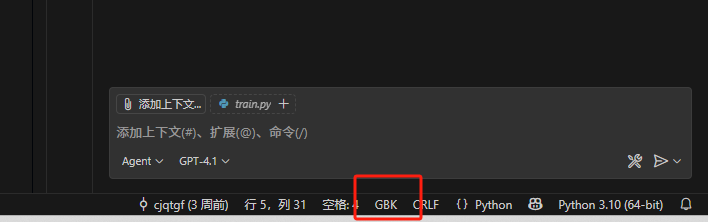
在 VSCode 的右下角状态栏,会显示当前打开文件的编码格式(比如 “UTF-8”“GBK” 等)。如果想修改文件编码,可以按照以下步骤操作:
点击右下角的编码显示(如 “UTF-8”);
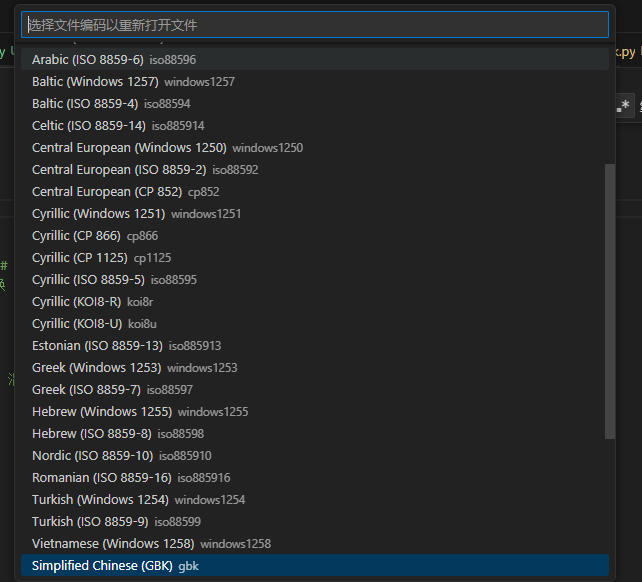
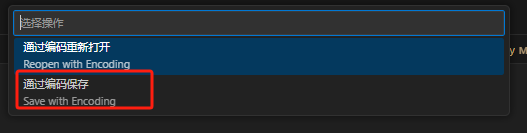
在弹出的菜单中,可选择 “通过编码重新打开”(用其他编码重新读取文件)或 “通过编码保存”(将文件转换为其他编码保存);
若选择 “通过编码重新打开”,会列出常见的编码选项(如 UTF-8、GBK、GB2312 等),选择对应编码后,VSCode 会用该编码重新解析文件内容;若选择 “通过编码保存”,则会将当前文件的内容转换为所选编码并保存。
3. 默认编码配置
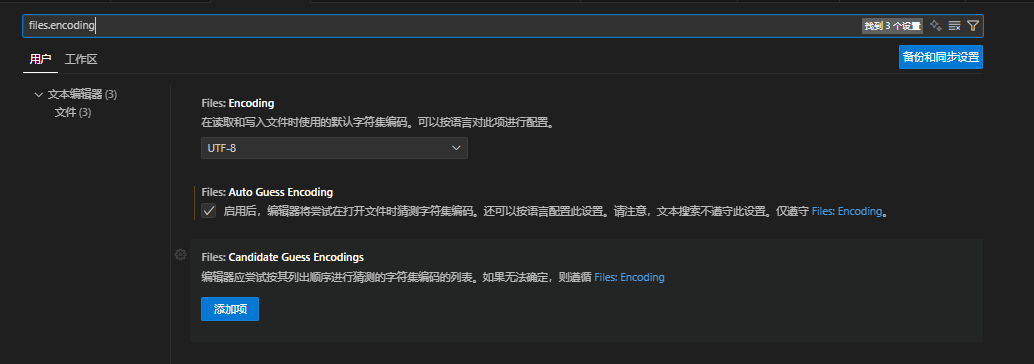
VSCode 有默认的文件编码设置,默认情况下,新建文件会以 UTF-8 编码保存。如果想修改默认编码,可以通过以下路径配置:
打开 VSCode 的设置(快捷键Ctrl+,);
在搜索框中输入 “files.encoding”;
在 “文件:编码” 的下拉菜单中,选择想要设置的默认编码(如 GBK),设置后新建的文件会默认使用该编码保存。
三、报错原因及修改方案(“SyntaxError: Non-UTF-8 code starting with” )
1、报错原因
Python 解释器在执行.py脚本时,有自己的编码处理规则:Python 3 默认以 UTF-8 编码读取脚本文件。如果脚本文件的实际编码不是 UTF-8,且文件中包含了非 ASCII 字符(如中文、日文等),Python 解释器在尝试用 UTF-8 解码文件时,就会无法识别部分字节数据,从而抛出 “SyntaxError: Non-UTF-8 code starting with” 错误。
举个例子:如果我们在 VSCode 或者其他编译器中新建了一个.py文件,不小心将其编码保存为 GBK,然后在文件中写入了中文注释(如# 这是一个测试脚本),当我们用python 脚本名.py命令执行脚本时,Python 解释器会按照默认的 UTF-8 编码去读取文件。由于文件实际是 GBK 编码,中文注释对应的字节数据在 UTF-8 编码规则中是无效的,此时就会触发该语法错误。

2、解决方案
方案 1:在脚本开头添加编码声明(最简单)
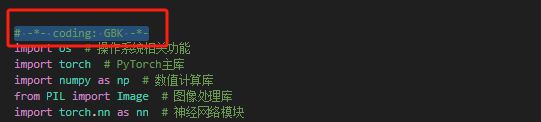
该方案最简单,但是前提是我们需要明确知道该py文件是以编码的格式进行保存的,假设我们目前知道这是以GBK格式进行保存的,那么我们只需要在代码的开头加上一个
# -*- coding: GBK -*-
就可以了
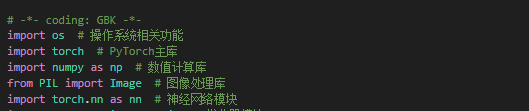
这里面的coding:后面的内容就是声明该文件是采用什么编码进行保存的,这边我们发现是GBK编码格式进行保存的,于是写的就是GBK
方案2:将文件编码转换为 UTF-8(最保险)
我们也可以将脚本文件的编码直接转换为 UTF-8,从根本上解决编码不匹配的问题。
操作步骤(在 VSCode 中):
1、打开报错的.py文件;
2、点击 VSCode 右下角的编码显示(如 “GBK”);
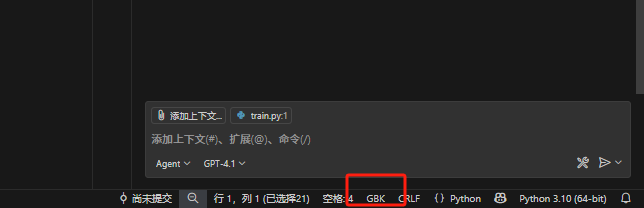
3、在弹出的菜单中选择 “通过编码保存”;
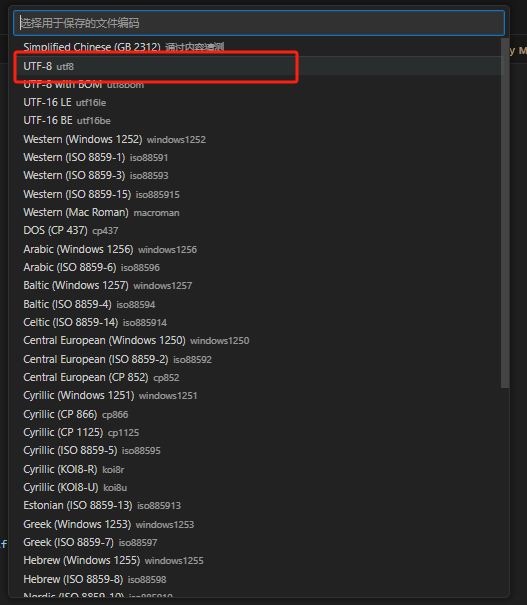
4、在编码列表中选择 “UTF-8”,VSCode 会将文件内容转换为 UTF-8 编码并保存;
5、删除脚本中可能存在的编码声明或将其改为utf-8(若之前添加过),然后执行脚本,此时 Python 解释器用默认的 UTF-8 编码读取文件,不会再报错。
方案3:将python文件命令行中的中文全部转为英文(最不推荐)
尽管该方案也相对来说较为简单,但是确实不存在这个必要,如果类似于print或者tqdm的输出全部改为英文,那么对英文不好的人来说代码以及输出的可读性降低了非常多,这并不是我们所希望的。
四、可能出现的新报错原因及修改方案
1、可能出现的新报错
‘utf-8’ codec can’t decode byte 0xb2 in position 0: …
SyntaxError: encoding problem: GBK
“UnicodeDecodeError: ‘gbk’ codec can’t decode byte 0xa6 in position xx: illegal multibyte sequence”
2、报错原因
这种 通常是由于编码声明与文件实际编码不匹配导致的。例如:
我们在脚本开头添加了# -- coding: GBK --的编码声明,但文件实际编码是 UTF-8;
或者我们将文件编码转换为 UTF-8 后,却没有删除之前添加的# -- coding: GBK --声明。
此时,Python 解释器会按照声明的编码(如 GBK)去读取实际为 UTF-8 编码的文件,由于编码不匹配,就会抛出解码错误。

3、解决方案
针对这种解码错误,我们可以按照以下步骤排查和解决:
步骤 1:确认文件实际编码
首先通过 VSCode 查看文件的实际编码(右下角状态栏),确认当前文件的编码格式(如 UTF-8、GBK)。当然前提是VScode以正确的编码打开该py文件,如果不是正确的话就会出现如下乱码的情况:
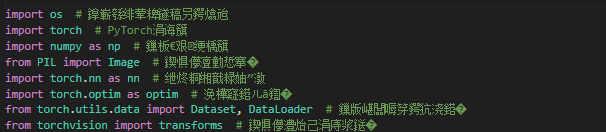
这样的话我们只能通过将代码重新以我们知道的编码格式,比如指定UTF-8进行保存,然后在进行编译(如果不是utf-8的话需要在文件头部添加上面讲到的编码声明)
当然我们也可以通过脚本的方法来检查代码的编码格式
首先进入命令行运行
pip install chardet
在创建一个新的脚本用 chardet 库检测文件编码,运行以下代码,既可得到对应报错文件的编码,接下来只需要在在文件头部添加上面讲到的编码声明既可
import chardet
# 读取目标文件的字节数据
with open("报错的脚本名.py", "rb") as f:
data = f.read()
# 检测编码
result = chardet.detect(data)
print("文件编码检测结果:", result)
步骤 2:统一编码声明与文件实际编码
若文件实际编码是 UTF-8:删除脚本中的编码声明(因为 Python 3 默认用 UTF-8 解码,无需额外声明),或确保编码声明为# -- coding: UTF-8 --;
若文件实际编码是 GBK:确保脚本开头的编码声明为# -- coding: GBK --,且不要将文件编码转换为 UTF-8(除非同时删除 GBK 编码声明)。
总结
“SyntaxError: Non-UTF-8 code starting with” 及后续 “UnicodeDecodeError”“SyntaxError: encoding problem”,核心都是编码不匹配 —— 要么 Python 默认 UTF-8 解码与文件实际编码不符,要么脚本编码声明和文件真实编码不一致。
解决关键:先查文件实际编码(VSCode 右下角看,不准或乱码用 chardet 库检测),再统一编码:UTF-8 删多余声明(或声明 UTF-8),GBK 加# -- coding: GBK --,避免声明与实际编码冲突。这样能解决编码报错,不用改中文为英文,兼顾效率和可读性。
報錯解決:Non-UTF-8 code starting with 和 ‘utf-8‘ codec can‘t decode byte 0xb2 in position 0: ....(已解決)
彙總 Python 常見編碼錯誤的排查順序:檔頭宣告、磁碟檔案的實際編碼與 IDE 設定、終端機字碼頁、python -X utf8 與在遇到舊 GBK 資產時的折衷處置。
來源:https://blog.csdn.net/2403_87969572/article/details/151845929
抓取時間(ISO本地):2026-05-18 05:17:14
文章目錄
- 前言
- 一、編碼是什麼?
- 二、編譯器打開編碼的機制(以博主用的VScode為例)
- 三、報錯原因及修改方案(“SyntaxError: Non-UTF-8 code starting with” )
- 四、可能出現的新報錯原因及修改方案
- 總結
前言
在 Python 開發過程中,不少開發者都曾遇到過 “SyntaxError: Non-UTF-8 code starting with” 或者 ‘utf-8’ codec can’t decode byte 0xb2 in position 0: invalid 這樣的錯誤。尤其是當我們在腳本中加入中文註釋、中文變量名或者處理包含中文等非英文字符的文件時,這個錯誤常常突然出現,打斷我們的開發進度。看似簡單的報錯,背後卻涉及到編碼的核心知識以及編輯器的編碼處理機制。這篇博客將從編碼基礎講起,帶你深入瞭解 編譯器打開文件的編碼機制,剖析該錯誤的產生原因,並提供詳細的解決方案,同時還會針對解決過程中可能出現的新報錯給出應對方法。
希望瞭解原理的讀者可以完整閱讀,只需要快讀解決報錯問題的讀者可以直接從目錄跳轉報錯解決部分
一、編碼是什麼?
要解決編碼相關的錯誤,首先得搞清楚 “編碼” 到底是什麼。
簡單來說,編碼(decode)就是將人類能看懂的字符(比如中文、英文、數字、符號等)轉換為計算機能識別和存儲的二進制數據(0 和 1)的規則,反之,解碼(encode)則是將二進制數據還原為字符的過程。
在計算機發展歷程中,出現過多種編碼方案:
ASCII 編碼:最早的編碼方案之一,僅能表示英文字母、數字和部分常用符號,總共只有 128 個字符。由於只能處理英文,無法滿足多語言場景的需求,逐漸被更完善的編碼方案取代。
GB2312 與 GBK 編碼:為了解決中文顯示問題,我國制定了 GB2312 編碼,它收錄了 6763 個常用漢字。後來在 GB2312 的基礎上擴展出 GBK 編碼,支持更多的漢字和少數民族文字,成為中文 Windows 系統默認的編碼之一。
UTF-8 編碼:當前應用最廣泛的編碼方案,屬於 Unicode 編碼的一種實現方式。Unicode 編碼為全球幾乎所有語言的字符都分配了唯一的編號,但它只是字符集,並非具體的編碼規則。UTF-8 則根據字符的不同,用 1-4 個字節來存儲字符,既兼容 ASCII 編碼(英文和數字仍用 1 個字節存儲),又能處理各種語言的字符,因此被大多數編程語言、操作系統和編輯器作為默認編碼。
不同編碼方案的核心區別在於字符與二進制數據的映射規則不同。如果一個文件以某種編碼方式保存,卻用另一種編碼方式讀取,就會出現亂碼或者編碼錯誤,這也是 “SyntaxError: Non-UTF-8 code starting with” 以及“ ‘utf-8’ codec can’t decode byte 0xb2 in position 0: invalid ”錯誤產生的根本原因。
二、編譯器打開編碼的機制(以博主用的VScode為例)
VSCode 作為目前主流的代碼編輯器,在處理文件編碼時有著自己的一套機制,瞭解這套機制能幫助我們更好地排查編碼問題。
1. 編碼檢測機制
當我們用 VSCode 打開一個文件時,VSCode 會先嚐試自動檢測文件的編碼格式。它主要通過以下兩種方式檢測:
基於文件內容的檢測:VSCode 會分析文件中的字節數據,根據常見編碼的特徵(比如 UTF-8 的 BOM 標識、GBK 的字符編碼範圍等)來推測文件編碼。例如,如果文件中包含中文,且字節數據符合 GBK 的編碼規則,VSCode 可能會將其檢測為 GBK 編碼。
基於文件擴展名和配置的輔助檢測:對於一些有固定編碼習慣的文件類型(如.py文件默認常為 UTF-8),VSCode 會結合文件擴展名和用戶的默認配置進行輔助判斷。
2. 編碼顯示與修改
在 VSCode 的右下角狀態欄,會顯示當前打開文件的編碼格式(比如 “UTF-8”“GBK” 等)。如果想修改文件編碼,可以按照以下步驟操作:
點擊右下角的編碼顯示(如 “UTF-8”);
在彈出的菜單中,可選擇 “通過編碼重新打開”(用其他編碼重新讀取文件)或 “通過編碼保存”(將文件轉換為其他編碼保存);
若選擇 “通過編碼重新打開”,會列出常見的編碼選項(如 UTF-8、GBK、GB2312 等),選擇對應編碼後,VSCode 會用該編碼重新解析文件內容;若選擇 “通過編碼保存”,則會將當前文件的內容轉換為所選編碼並保存。
3. 默認編碼配置
VSCode 有默認的文件編碼設置,默認情況下,新建文件會以 UTF-8 編碼保存。如果想修改默認編碼,可以通過以下路徑配置:
打開 VSCode 的設置(快捷鍵Ctrl+,);
在搜索框中輸入 “files.encoding”;
在 “文件:編碼” 的下拉菜單中,選擇想要設置的默認編碼(如 GBK),設置後新建的文件會默認使用該編碼保存。
三、報錯原因及修改方案(“SyntaxError: Non-UTF-8 code starting with” )
1、報錯原因
Python 解釋器在執行.py腳本時,有自己的編碼處理規則:Python 3 默認以 UTF-8 編碼讀取腳本文件。如果腳本文件的實際編碼不是 UTF-8,且文件中包含了非 ASCII 字符(如中文、日文等),Python 解釋器在嘗試用 UTF-8 解碼文件時,就會無法識別部分字節數據,從而拋出 “SyntaxError: Non-UTF-8 code starting with” 錯誤。
舉個例子:如果我們在 VSCode 或者其他編譯器中新建了一個.py文件,不小心將其編碼保存為 GBK,然後在文件中寫入了中文註釋(如# 這是一個測試腳本),當我們用python 腳本名.py命令執行腳本時,Python 解釋器會按照默認的 UTF-8 編碼去讀取文件。由於文件實際是 GBK 編碼,中文註釋對應的字節數據在 UTF-8 編碼規則中是無效的,此時就會觸發該語法錯誤。
2、解決方案
方案 1:在腳本開頭添加編碼聲明(最簡單)
該方案最簡單,但是前提是我們需要明確知道該py文件是以編碼的格式進行保存的,假設我們目前知道這是以GBK格式進行保存的,那麼我們只需要在代碼的開頭加上一個
# -*- coding: GBK -*-
就可以了
這裡面的coding:後面的內容就是聲明該文件是採用什麼編碼進行保存的,這邊我們發現是GBK編碼格式進行保存的,於是寫的就是GBK
方案2:將文件編碼轉換為 UTF-8(最保險)
我們也可以將腳本文件的編碼直接轉換為 UTF-8,從根本上解決編碼不匹配的問題。
操作步驟(在 VSCode 中):
1、打開報錯的.py文件;
2、點擊 VSCode 右下角的編碼顯示(如 “GBK”);
3、在彈出的菜單中選擇 “通過編碼保存”;
4、在編碼列表中選擇 “UTF-8”,VSCode 會將文件內容轉換為 UTF-8 編碼並保存;
5、刪除腳本中可能存在的編碼聲明或將其改為utf-8(若之前添加過),然後執行腳本,此時 Python 解釋器用默認的 UTF-8 編碼讀取文件,不會再報錯。
方案3:將python文件命令行中的中文全部轉為英文(最不推薦)
儘管該方案也相對來說較為簡單,但是確實不存在這個必要,如果類似於print或者tqdm的輸出全部改為英文,那麼對英文不好的人來說代碼以及輸出的可讀性降低了非常多,這並不是我們所希望的。
四、可能出現的新報錯原因及修改方案
1、可能出現的新報錯
‘utf-8’ codec can’t decode byte 0xb2 in position 0: …
SyntaxError: encoding problem: GBK
“UnicodeDecodeError: ‘gbk’ codec can’t decode byte 0xa6 in position xx: illegal multibyte sequence”
2、報錯原因
這種 通常是由於編碼聲明與文件實際編碼不匹配導致的。例如:
我們在腳本開頭添加了# -- coding: GBK --的編碼聲明,但文件實際編碼是 UTF-8;
或者我們將文件編碼轉換為 UTF-8 後,卻沒有刪除之前添加的# -- coding: GBK --聲明。
此時,Python 解釋器會按照聲明的編碼(如 GBK)去讀取實際為 UTF-8 編碼的文件,由於編碼不匹配,就會拋出解碼錯誤。
3、解決方案
針對這種解碼錯誤,我們可以按照以下步驟排查和解決:
步驟 1:確認文件實際編碼
首先通過 VSCode 查看文件的實際編碼(右下角狀態欄),確認當前文件的編碼格式(如 UTF-8、GBK)。當然前提是VScode以正確的編碼打開該py文件,如果不是正確的話就會出現如下亂碼的情況:
這樣的話我們只能通過將代碼重新以我們知道的編碼格式,比如指定UTF-8進行保存,然後在進行編譯(如果不是utf-8的話需要在文件頭部添加上面講到的編碼聲明)
當然我們也可以通過腳本的方法來檢查代碼的編碼格式
首先進入命令行運行
pip install chardet
在創建一個新的腳本用 chardet 庫檢測文件編碼,運行以下代碼,既可得到對應報錯文件的編碼,接下來只需要在在文件頭部添加上面講到的編碼聲明既可
import chardet
# 讀取目標文件的字節數據
with open("報錯的腳本名.py", "rb") as f:
data = f.read()
# 檢測編碼
result = chardet.detect(data)
print("文件編碼檢測結果:", result)
步驟 2:統一編碼聲明與文件實際編碼
若文件實際編碼是 UTF-8:刪除腳本中的編碼聲明(因為 Python 3 默認用 UTF-8 解碼,無需額外聲明),或確保編碼聲明為# -- coding: UTF-8 --;
若文件實際編碼是 GBK:確保腳本開頭的編碼聲明為# -- coding: GBK --,且不要將文件編碼轉換為 UTF-8(除非同時刪除 GBK 編碼聲明)。
總結
“SyntaxError: Non-UTF-8 code starting with” 及後續 “UnicodeDecodeError”“SyntaxError: encoding problem”,核心都是編碼不匹配 —— 要麼 Python 默認 UTF-8 解碼與文件實際編碼不符,要麼腳本編碼聲明和文件真實編碼不一致。
解決關鍵:先查文件實際編碼(VSCode 右下角看,不準或亂碼用 chardet 庫檢測),再統一編碼:UTF-8 刪多餘聲明(或聲明 UTF-8),GBK 加# -- coding: GBK --,避免聲明與實際編碼衝突。這樣能解決編碼報錯,不用改中文為英文,兼顧效率和可讀性。
Troubleshooting “Non-UTF-8 code starting with” and “‘utf-8’ codec can’t decode byte 0xb2 in position 0…” (Resolved)
Operational checklist for Python encoding crashes: PEP 263 headers, aligning on-disk encoding with IDE defaults, aligning console code pages, optional python -X utf8, and pragmatic coexistence when legacy GBK assets remain.
Captured at (local ISO): 2026-05-18 05:17:14
Introduction
While developing in Python, many people run into “SyntaxError: Non-UTF-8 code starting with” or something like “‘utf-8’ codec can’t decode byte 0xb2 in position 0: invalid …”. This often shows up when you add Chinese comments, Chinese identifiers, or process files that contain non-ASCII text. The error looks small, but it touches how encoding works and how your editor interprets bytes. This post starts from the basics, walks through how VS Code picks an encoding when opening a file, explains why the error happens, gives concrete fixes, and covers new errors you might see after “fixing” things the wrong way.
If you care about the theory, read from the top; if you only need a quick fix, jump from the table of contents to the troubleshooting section.
I. What is encoding?
To fix encoding errors, you first need to know what “encoding” means.
In short, encoding is the rule that maps human-readable characters (letters, digits, CJK text, symbols, etc.) to bytes the computer stores; decoding is the reverse.
Over the years many schemes have been used:
ASCII — One of the earliest; only covers English letters, digits, and a small set of symbols (128 code points). It’s English-only and was replaced over time where multilingual text matters.
GB2312 and GBK — Built to display Chinese properly. GB2312 covers ~6,763 commonly used Han characters; GBK extends GB2312 and adds more characters (and is commonly seen as the default on Chinese Windows setups).
UTF-8 — Today’s most widely used encoding on the wire and in tooling. Unicode assigns a unique code point to almost every writing system; UTF-8 is one byte serialization of Unicode. ASCII characters still use one byte; other characters take 2–4 bytes. Most languages, OS defaults, and editors treat UTF-8 as the sane default.
The root issue is simple: if a file was saved using one encoding but read using another, you get garbage or hard decode errors—including “SyntaxError: Non-UTF-8 code starting with” or “‘utf-8’ codec can’t decode byte …”.
II. How your editor selects encoding when opening files (VS Code example)
VS Code follows a predictable pipeline when figuring out “what encoding is this buffer?” Knowing it makes debugging faster.
1. Encoding auto-detection
When VS Code opens a file, it tries to infer encoding in two complementary ways:
- Content-based detection — Inspect raw bytes for signatures and patterns (e.g., UTF‑8 BOM, typical GBK byte ranges when Chinese appears in the payload), then guess encoding.
- Extension + defaults — For file types whose ecosystem strongly prefers UTF‑8 (e.g.
.py), VS Code also layers in language defaults and user settings.
2. View and change encoding
Look at the status bar at the bottom right — it shows the current encoding (“UTF‑8”, “GBK”, etc.).
To change it:
- Click that label;
- Use “Reopen with Encoding” to reinterpret bytes with another encoding without rewriting the file, or “Save with Encoding” to transcode and write new bytes;
- Pick from the list (UTF‑8, GB2312, GBK, …).
3. Default encoding settings
Out of the box, new files are UTF‑8. To change the default:
- Open Settings (
Ctrl+,); - Search
files.encoding; - Choose your preferred default (e.g. GBK) from Files: Encoding — new files will save with that encoding afterward.
III. Why the error occurs and how to fix it (“SyntaxError: Non-UTF-8 code starting with”)
1. Cause
Python 3 reads source files as UTF‑8 by default. If the file on disk is not UTF‑8 and contains non‑ASCII characters (Chinese, Japanese, etc.), the interpreter’s UTF‑8 decoder can hit invalid sequences and raise SyntaxError: Non-UTF-8 code starting with ….
Example: you create foo.py in some editor, it ends up saved as GBK, and you write a Chinese comment like # 这是一个测试脚本. Running python foo.py, Python tries UTF‑8; the GBK bytes for that comment aren’t valid UTF‑8 byte sequences → syntax error before your code even runs logically.
2. Fixes
Option 1: Add an encoding cookie at the top of the script (simplest)
This is quick, but you must know the real on-disk encoding. If the file is truly saved as GBK, add at the very top:
# -*- coding: GBK -*-
The name after coding: must match how the file is actually stored (here: GBK).
Option 2: Convert the file to UTF-8 (most reliable)
Transcode the source to UTF‑8 so it matches Python’s default reader.
In VS Code:
- Open the
.pyfile that errors; - Click the encoding label in the status bar (maybe it says “GBK”);
- Choose “Save with Encoding”;
- Pick UTF‑8;
- Remove any old
# -*- coding: gbk -*-line or change it to UTF‑8 only if you still need one, then rerun.
Option 3: Replace Chinese in CLI output with English (least recommended)
Renaming prints / tqdm outputs to English can dodge some issues, but it hurts readability for Chinese‑speaking teammates and solves the wrong layer of the problem.
IV. New errors you may hit after fixing and how to handle them
1. Possible follow-up errors
‘utf-8’ codec can’t decode byte 0xb2 in position 0: …
SyntaxError: encoding problem: GBK
UnicodeDecodeError: ‘gbk’ codec can’t decode byte 0xa6 in position xx: illegal multibyte sequence
2. Causes
Usually your cookie doesn’t match the bytes on disk:
# -*- coding: GBK -*-at the top, but the editor saved UTF‑8;- Or you transcoded everything to UTF‑8 but forgot to remove the GBK declaration.
Python will then decode with the declared encoding → mismatch explosions.
3. Fixes
Treat it as consistency between three facts: declaration (if any), editor display encoding, bytes on disk.
Step 1: Confirm the file’s actual encoding
Check VS Code’s status bar first. Important: VS Code must reopen the buffer with the encoding that matches the disk bytes; otherwise you’ll “see gibberish” like:
If wrong, reopen with UTF‑8 (or whichever encoding you intend), then Save with Encoding accordingly. For files that aren’t UTF‑8, add the matching # -*- coding: … -*- line if you insist on staying non‑UTF‑8.
You can also detect bytes objectively:
Install chardet from the shell:
pip install chardet
Then run:
import chardet

# Read raw bytes
with open("your_script_that_errors.py", "rb") as f:
    data = f.read()
    result = chardet.detect(data)
    print("Detection result:", result)
Put the guessed encoding in the # -*- coding: … -*- line only when it truly matches disk.
Step 2: Make the declaration match the file
- If disk is UTF‑8: drop the redundant cookie entirely (Python 3 default), or
# -*- coding: utf-8 -*-if policy requires it. - If disk is GBK: keep
# -*- coding: gbk -*-and don’t silently save UTF‑8 on top unless you delete/changed that header at the same time.
Summary
“SyntaxError: Non-UTF-8 code starting with”, later “UnicodeDecodeError”, “SyntaxError: encoding problem…”—all distill to mixed signals about bytes vs encoding: Python’s default UTF‑8 vs real file encoding, or a wrong # -*- coding -*- line.
Flow that works: detect real encoding (status bar; if garbled, reopen correctly; if still unsure, chardet) → one story: UTF‑8 file + no conflicting cookie, or GBK file + matching cookie. That keeps Chinese text without forcing everything into English.